Register patients quickly with complete demographic, insurance, and medical information.
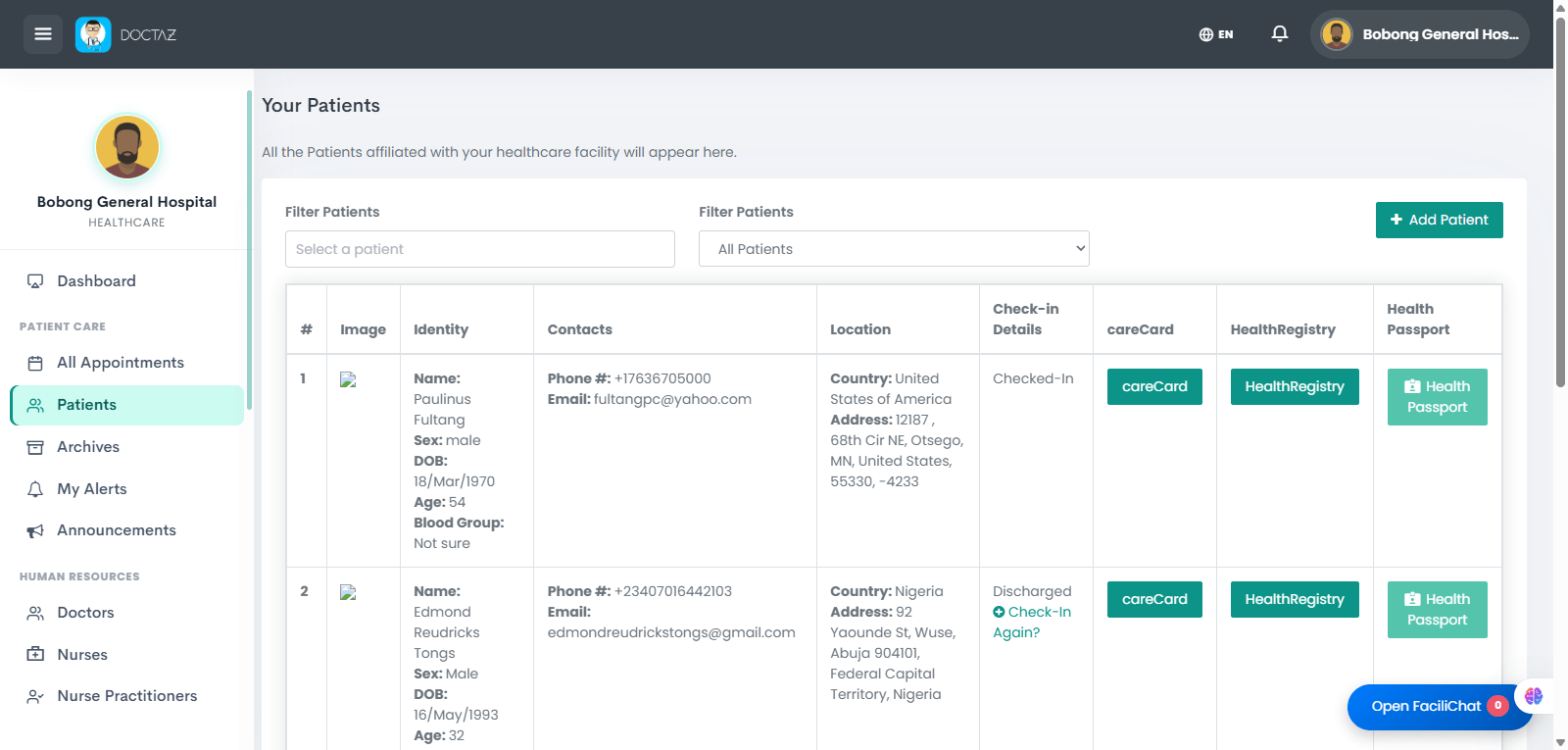
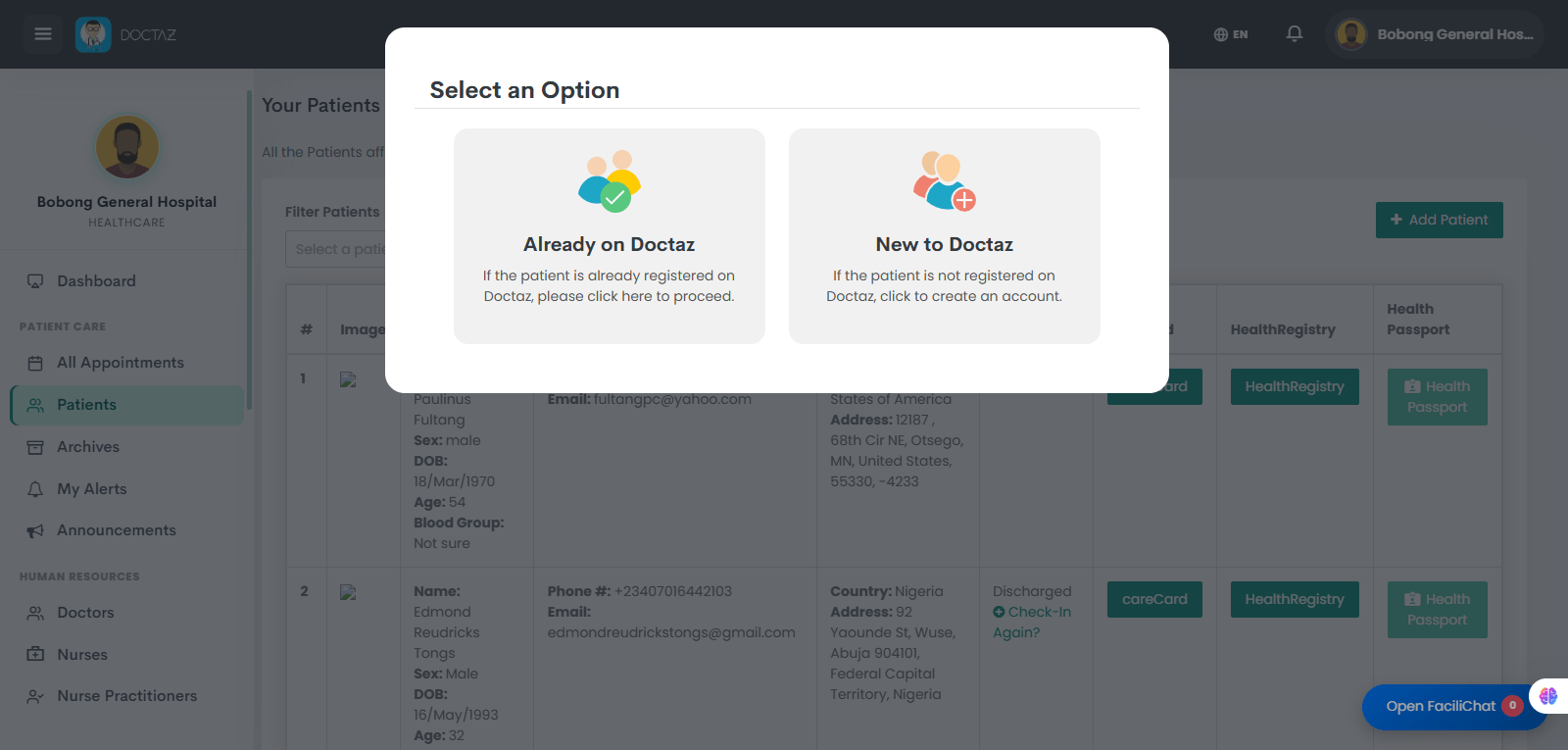
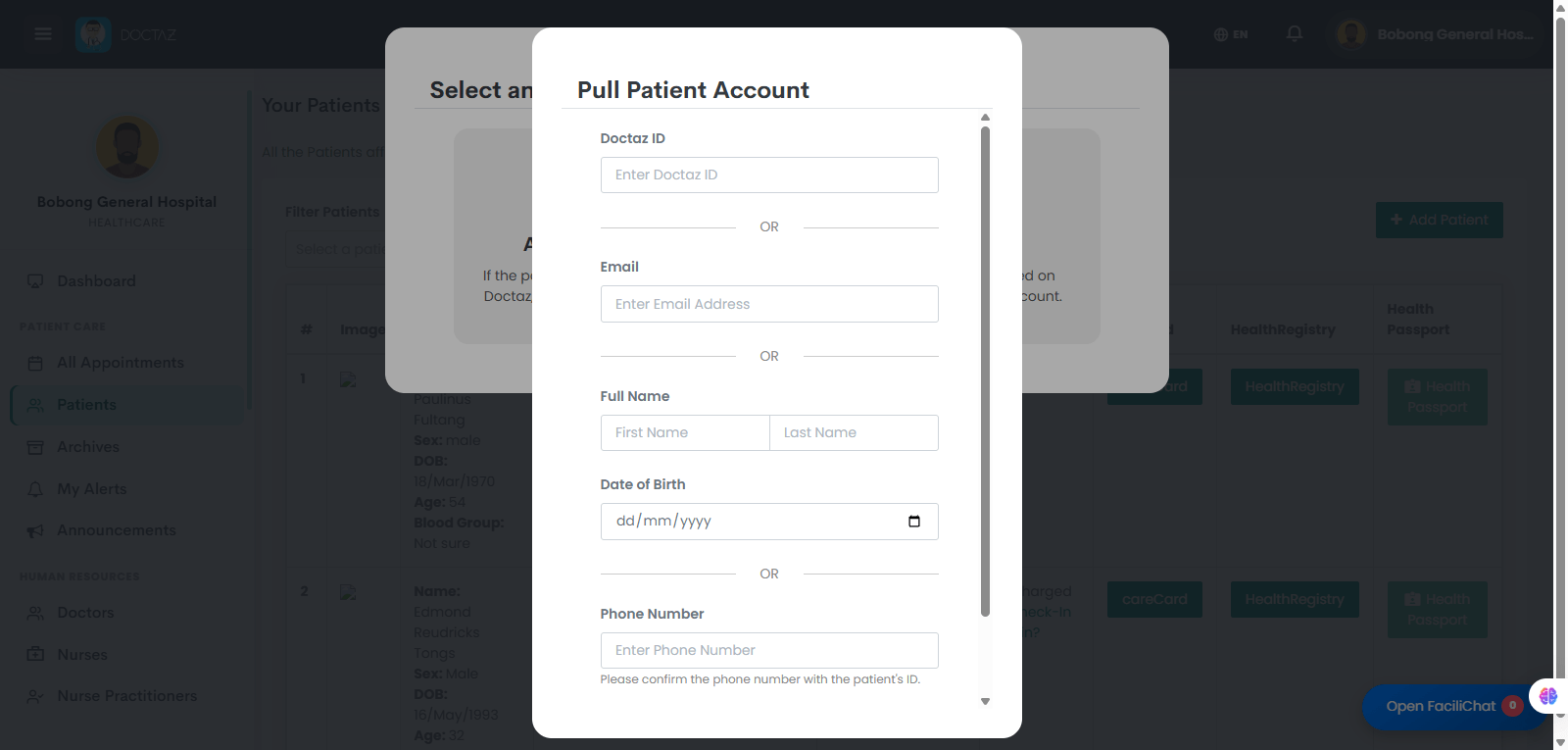
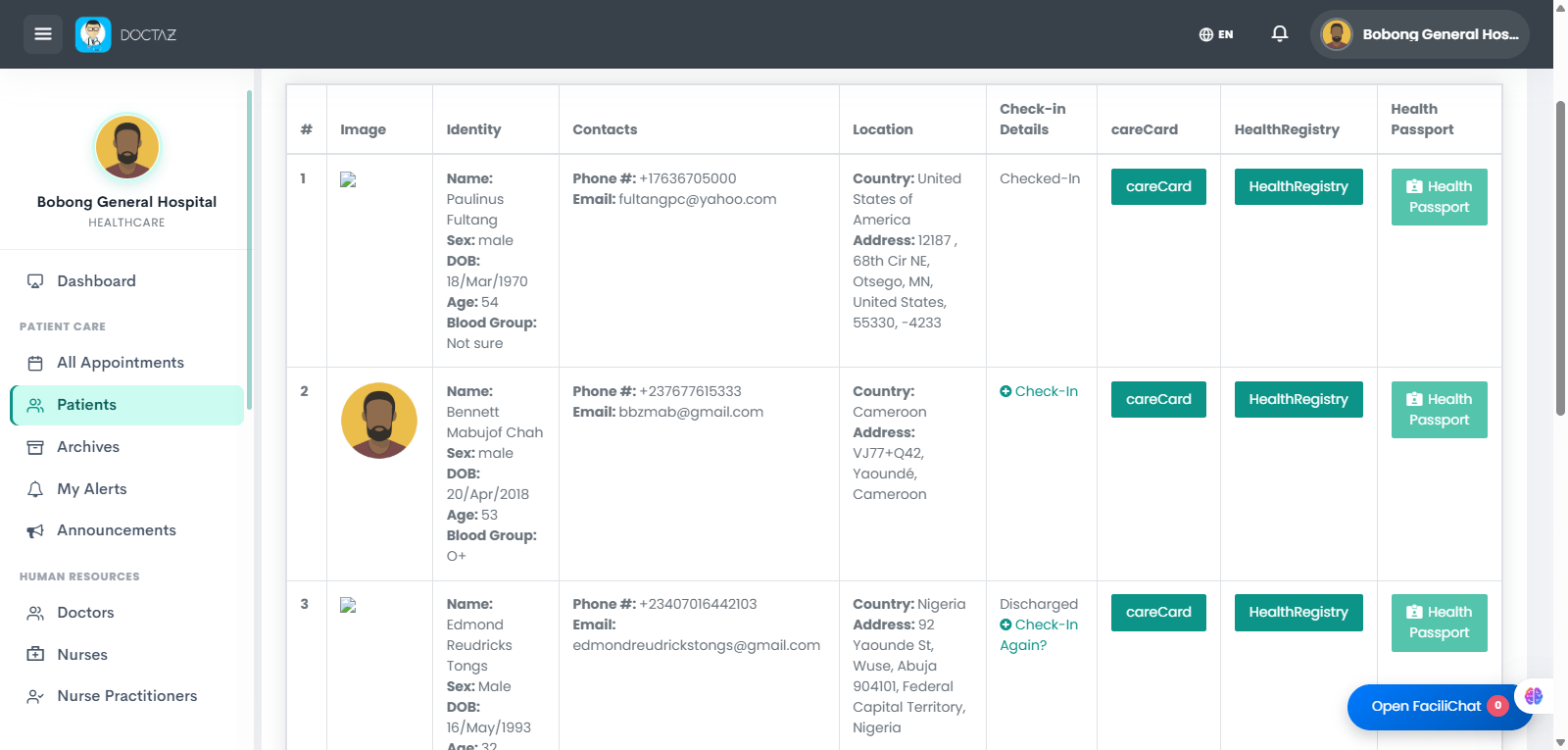
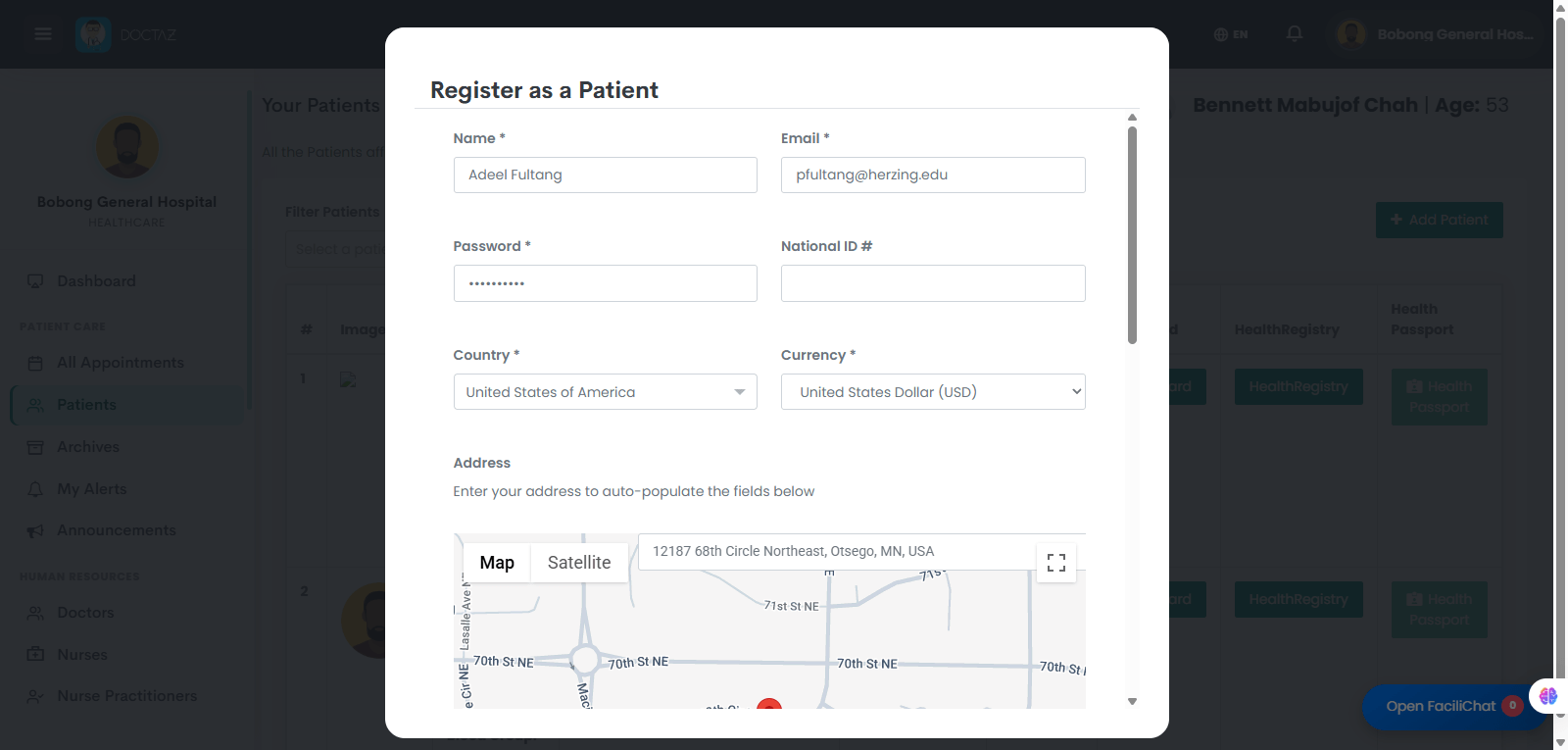
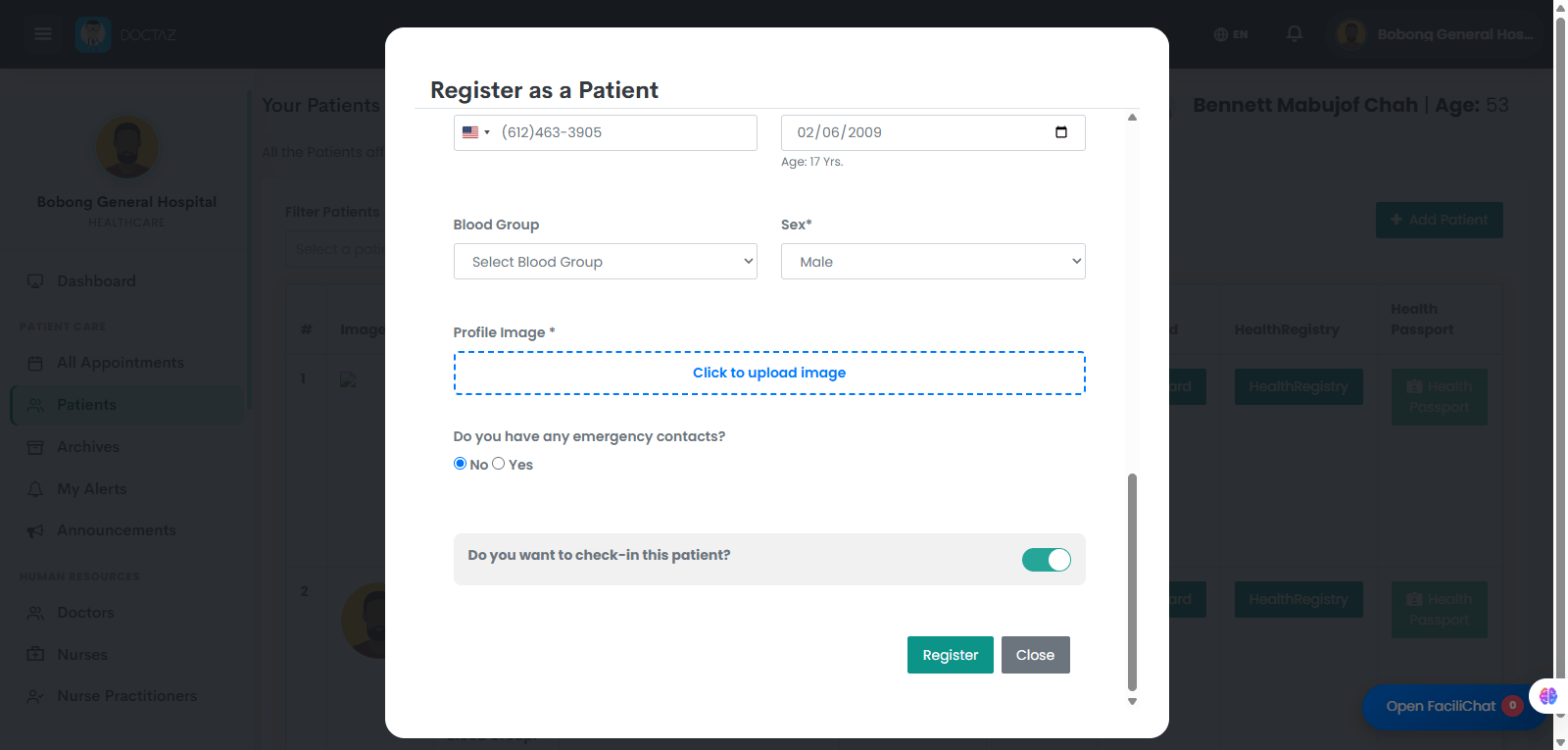
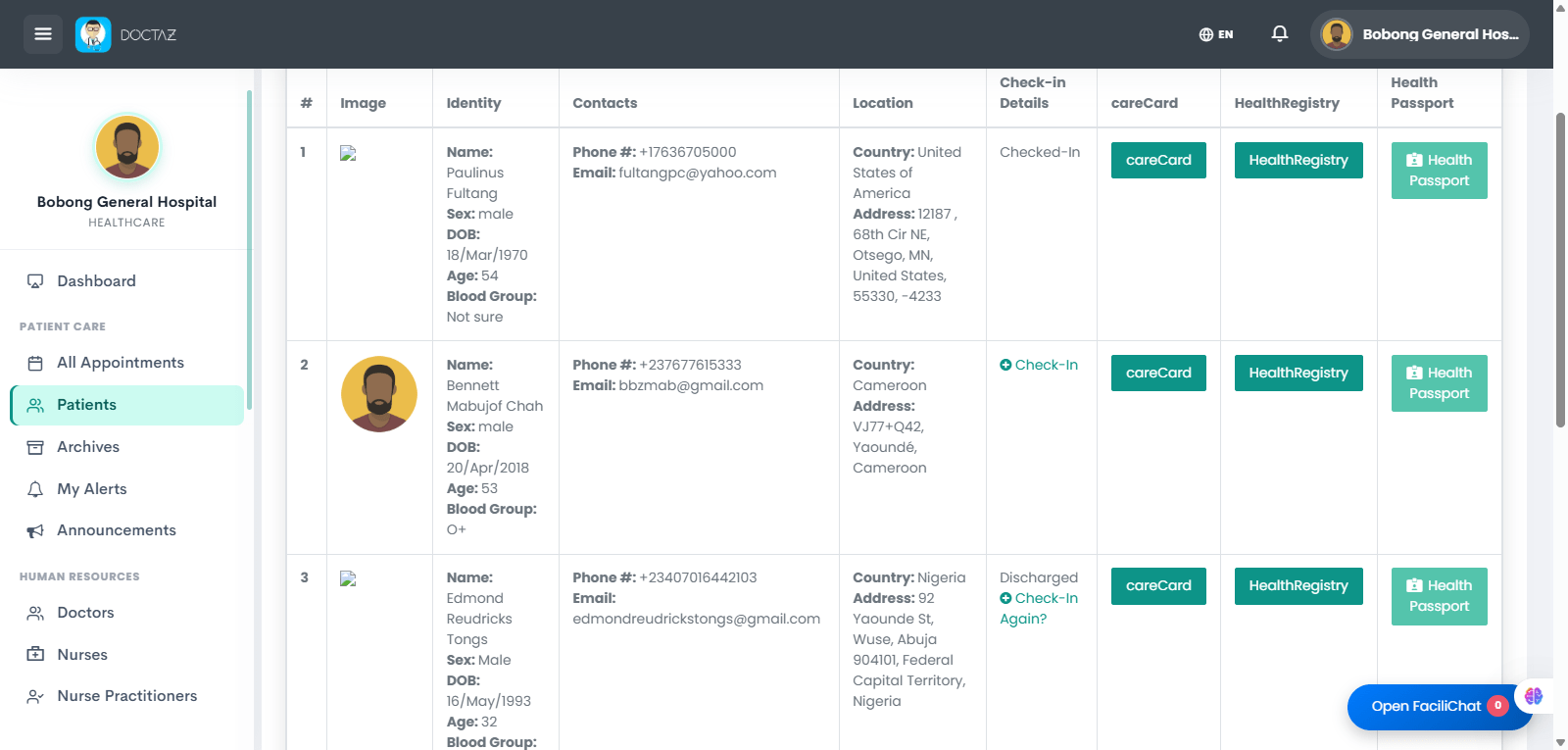
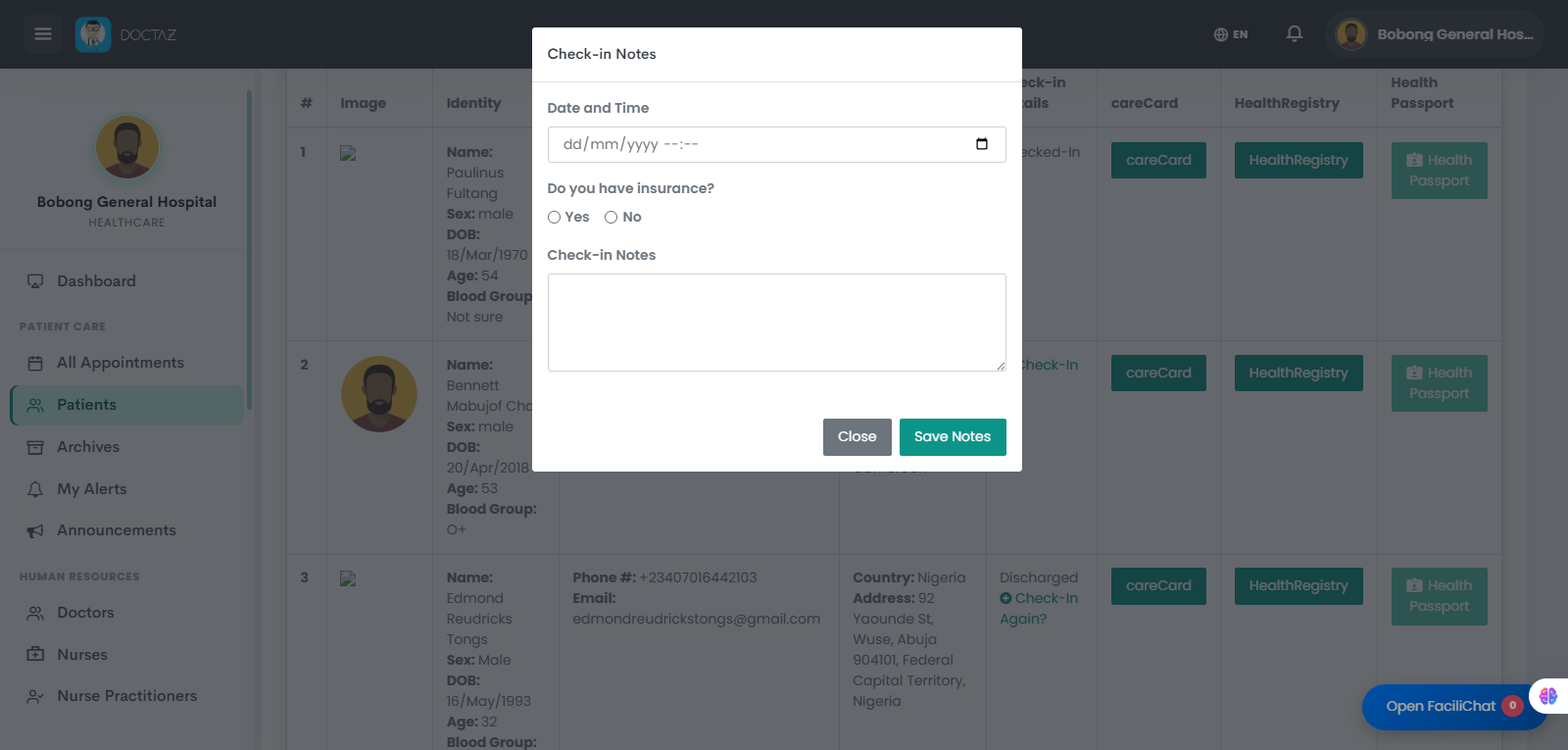
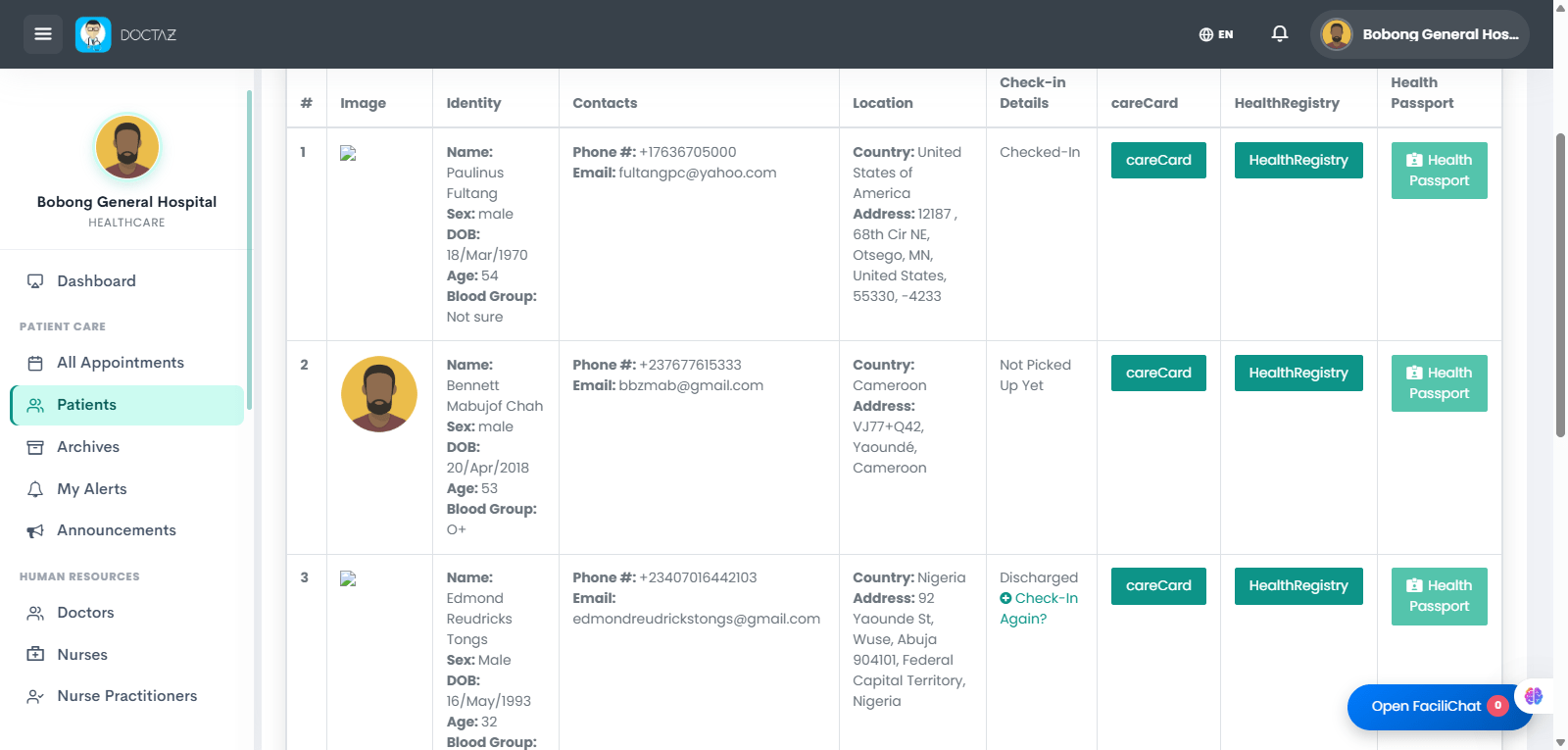
STEP 01 / 09Patient ManagementNavigate to the Patients module and click Add Patient to register a new patient.STEP 02 / 09Choose Registration TypeSelect whether the patient is Already on Doctaz or New to Doctaz.STEP 03 / 09Search for an Existing PatientSearch for an existing Doctaz patient using Doctaz ID, email, name, date of birth, or phone number.STEP 04 / 09Existing Patient AddedThe selected patient is linked to your facility and is now available in your patient list.STEP 05 / 09Patient Not Registered on DoctazEnter the patient's account details, country, address, and other basic information.STEP 06 / 09Add a Profile PictureUpload the patient's profile picture to complete the patient profile.STEP 07 / 09Proceed to Patient Check InPatient registration is complete. Continue to check in the patient for today's visit.STEP 08 / 09Complete Patient Check-InRecord the patient's arrival time, insurance status, and check-in notes to complete the check-in process. Once saved, the patient is added to the care queue and Doctaz automatically notifies the assigned nurse.STEP 09 / 09Patient Waiting QueueAfter check-in is completed, the patient is added to the waiting queue. Doctaz automatically notifies the assigned nurse, and the patient's status remains "Not Picked Up Yet" until the nurse begins care.