Facility / Private Practice Account Creation Process
This process guides healthcare facilities through creating a Doctaz account by registering the facility, configuring operational details, selecting a subscription plan, and accessing the facility dashboard for ongoing management.
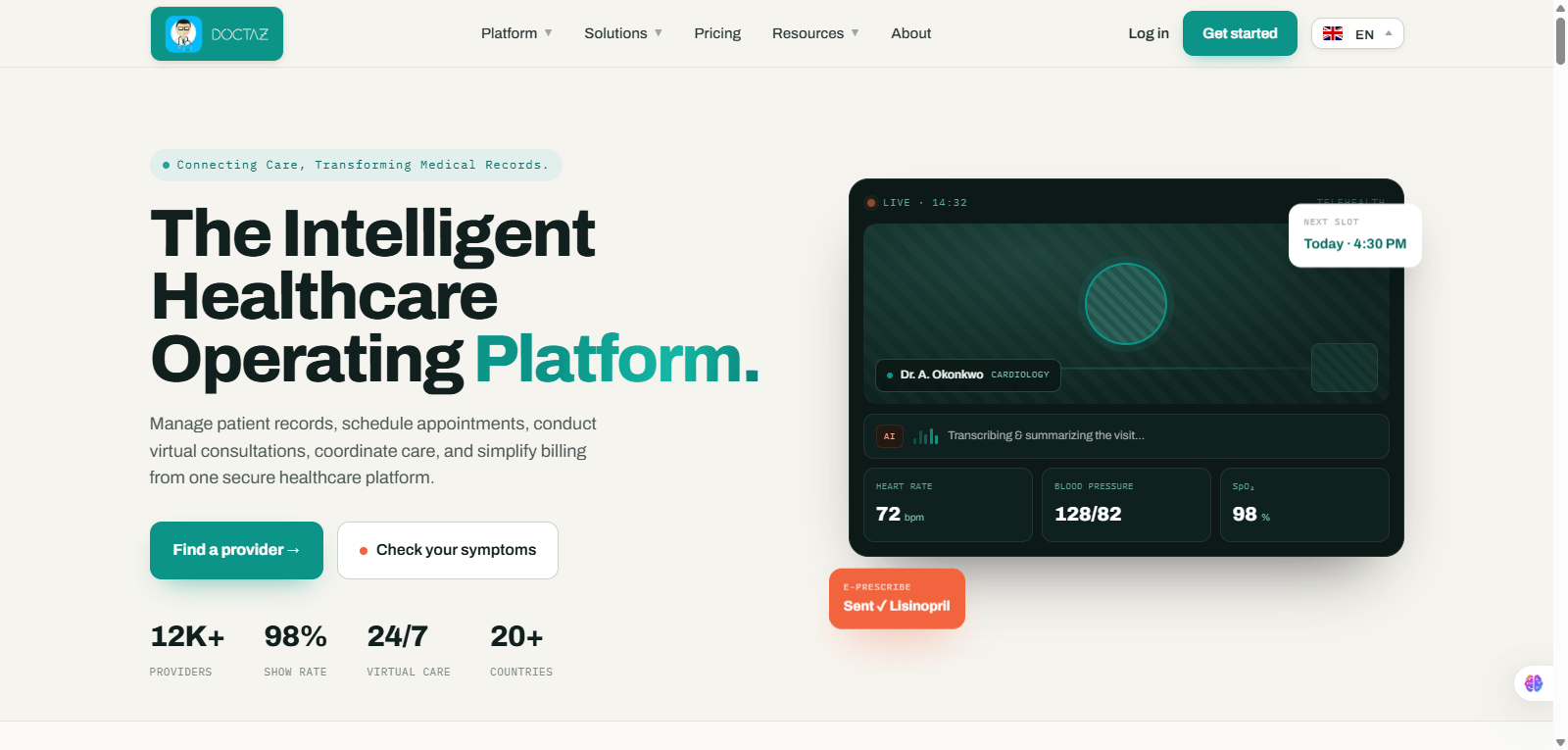
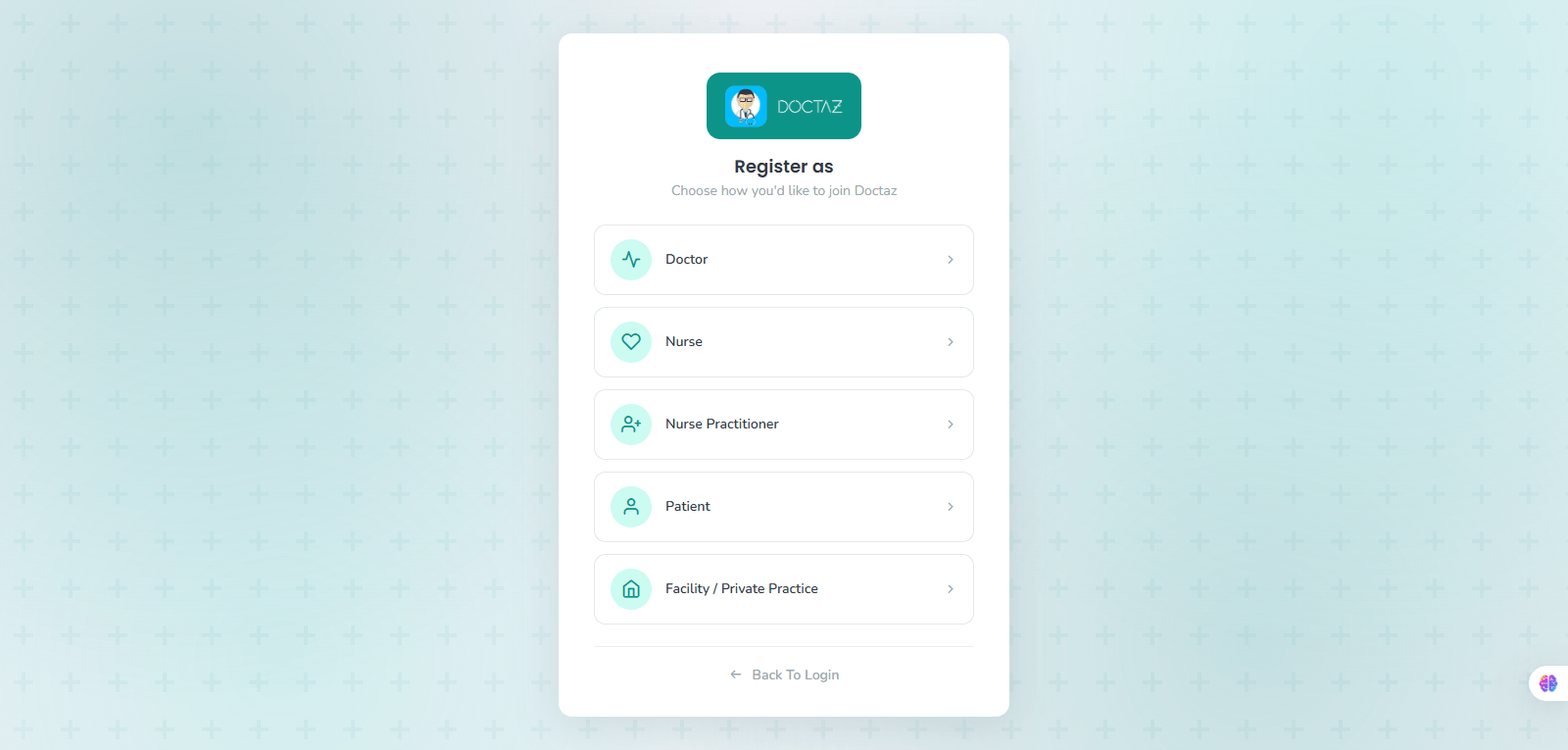
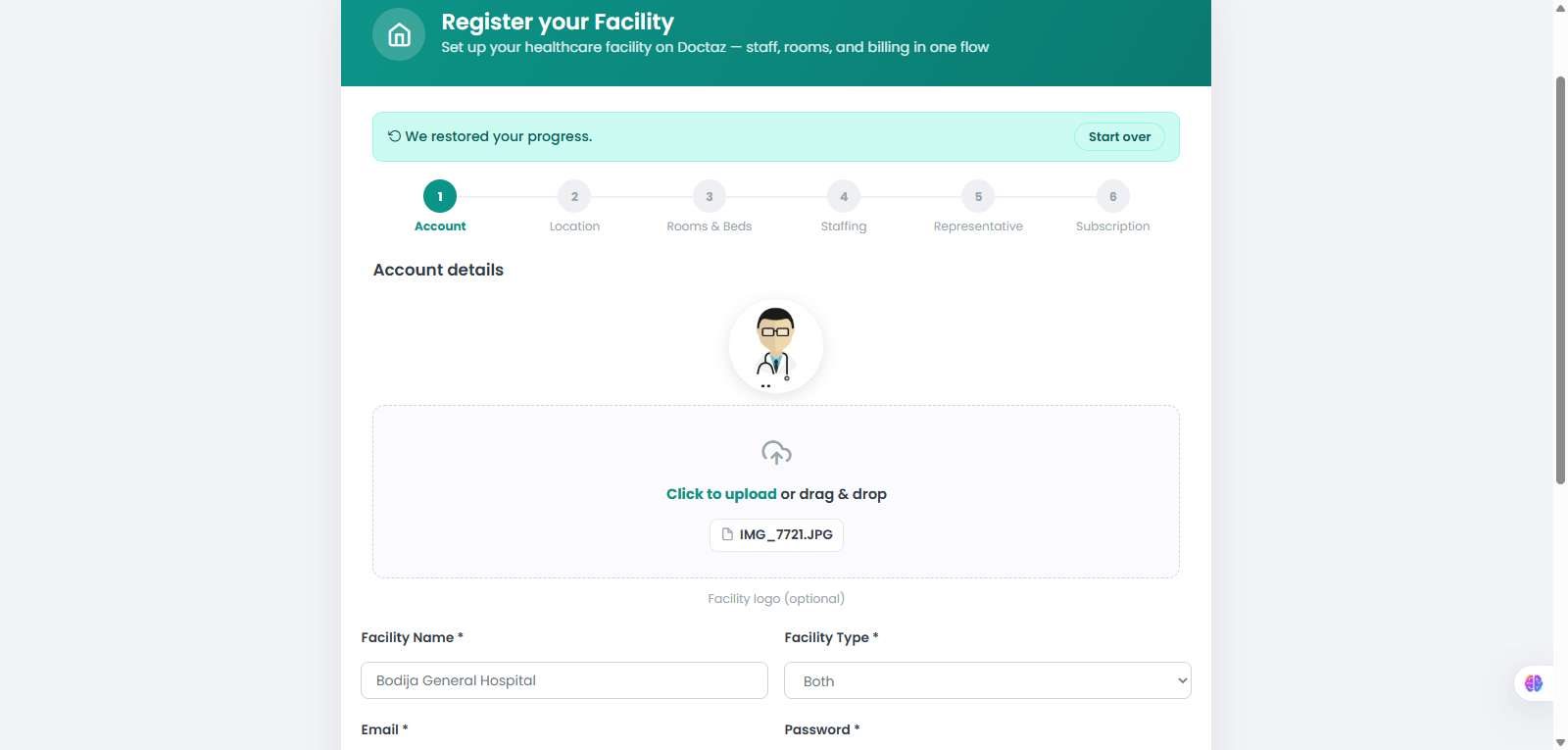
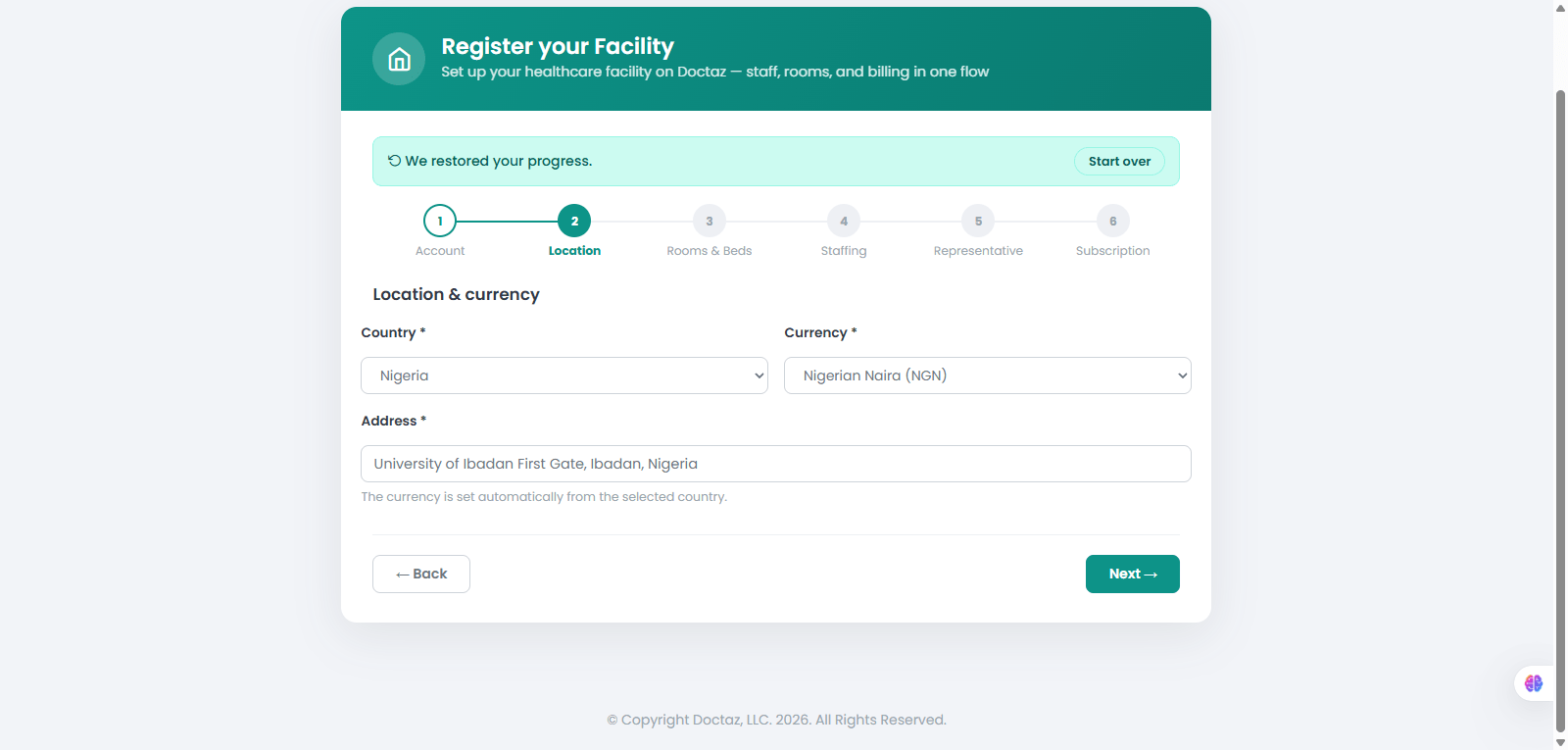
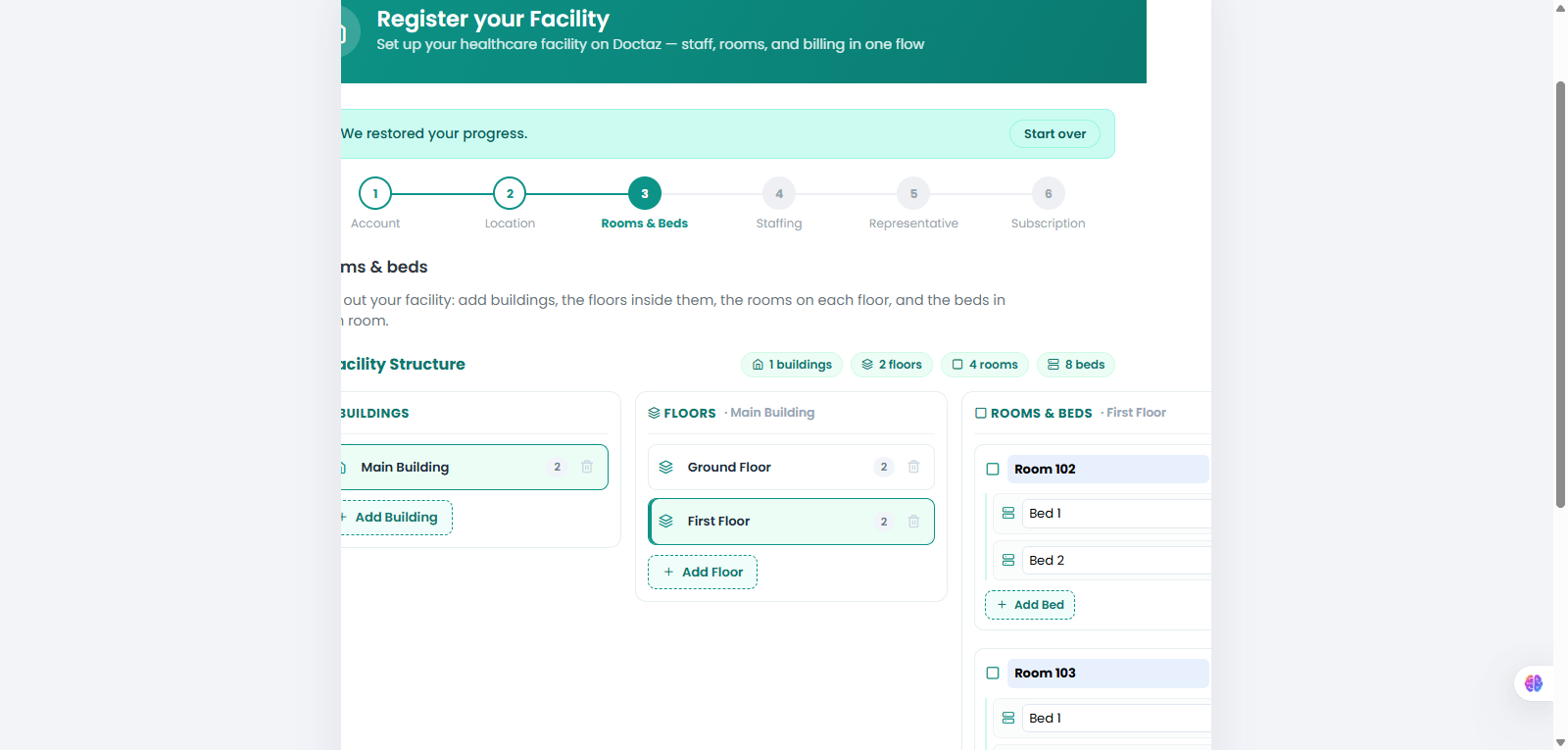
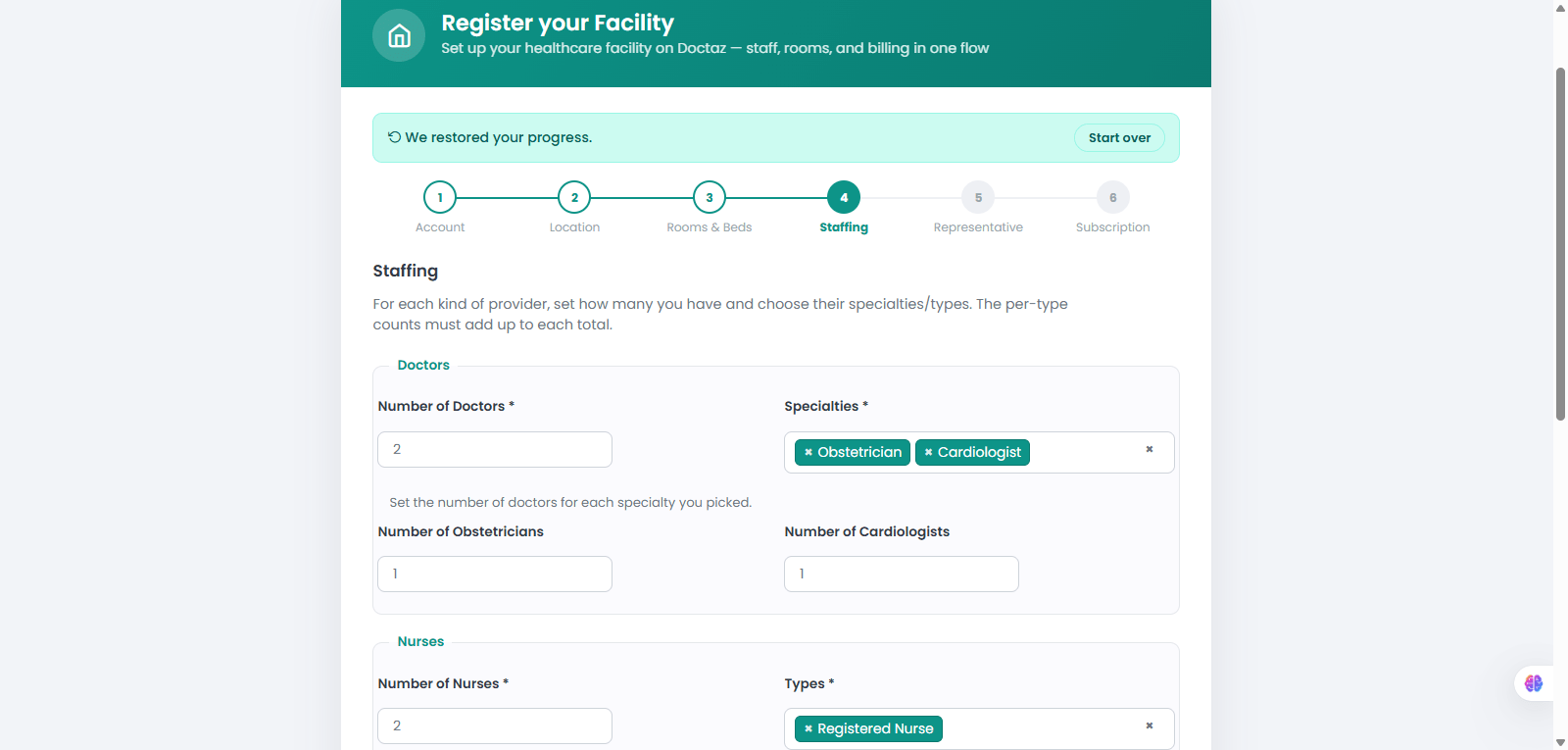
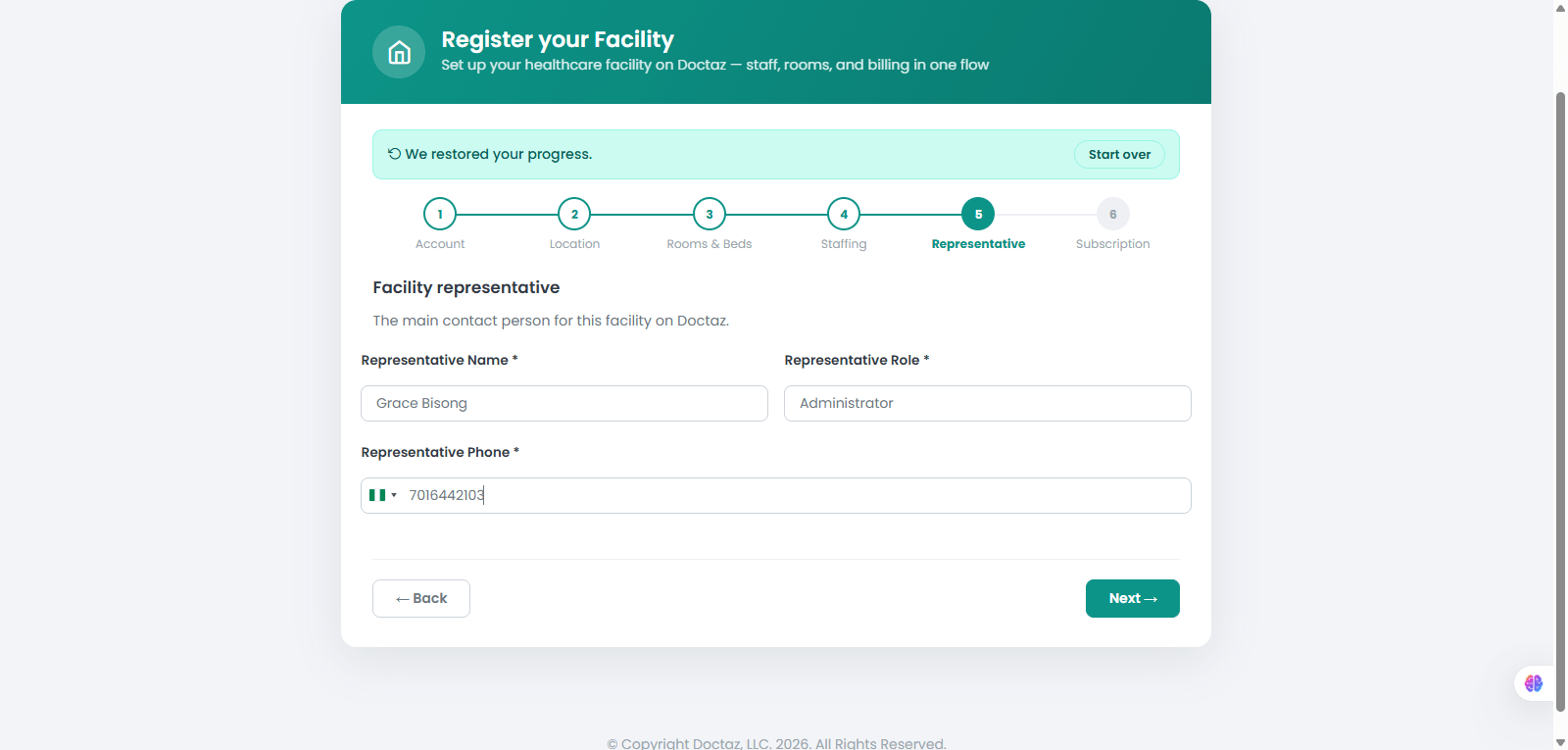
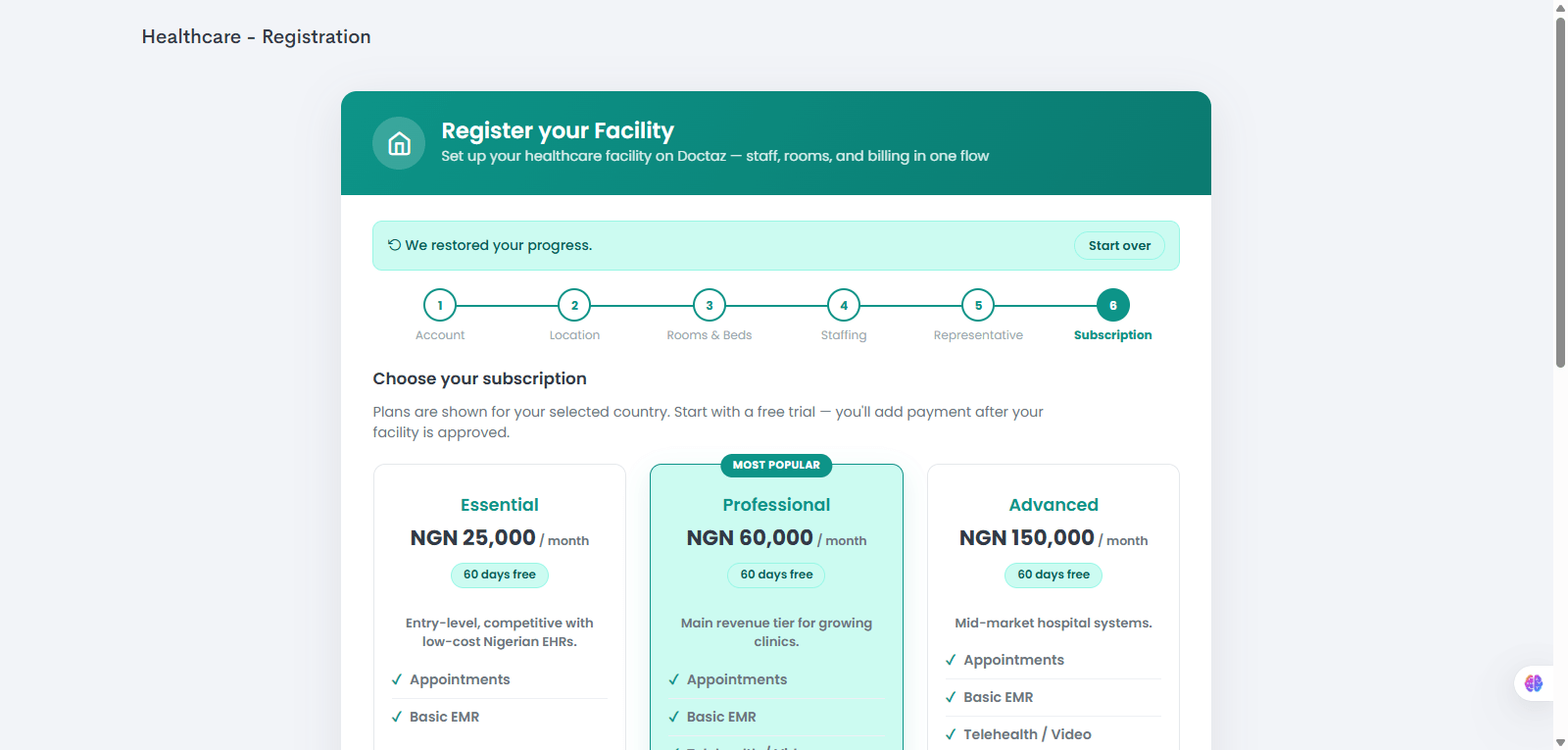
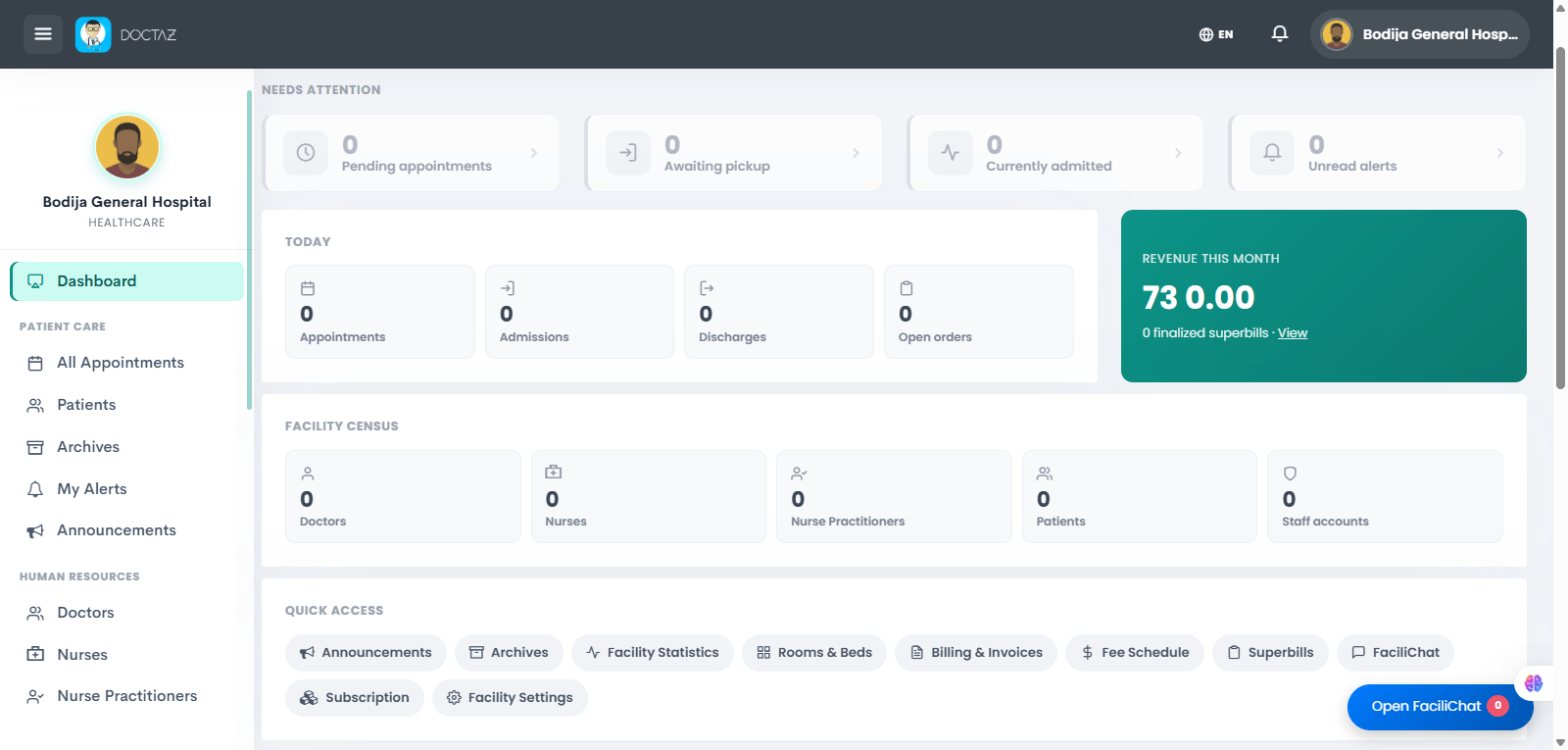
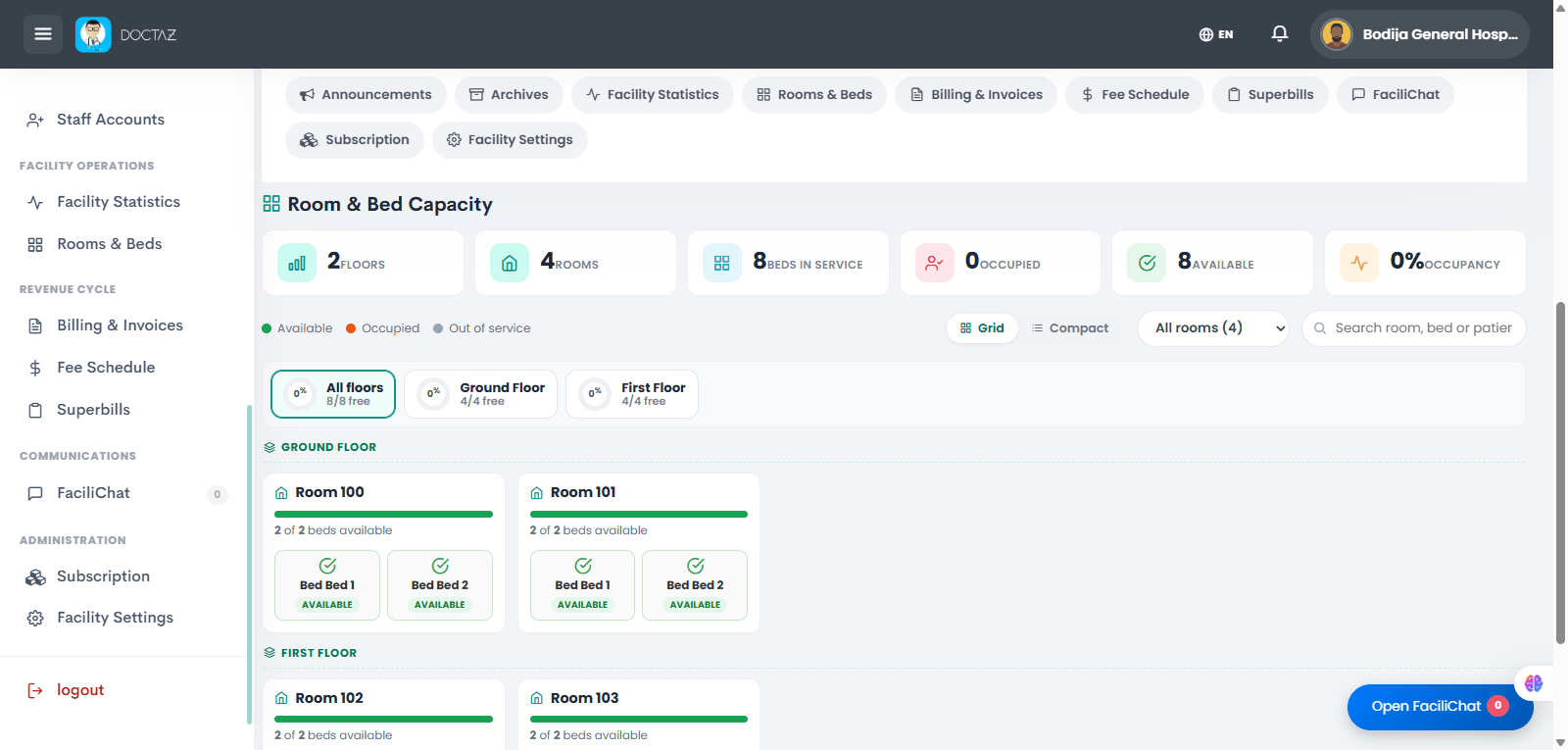
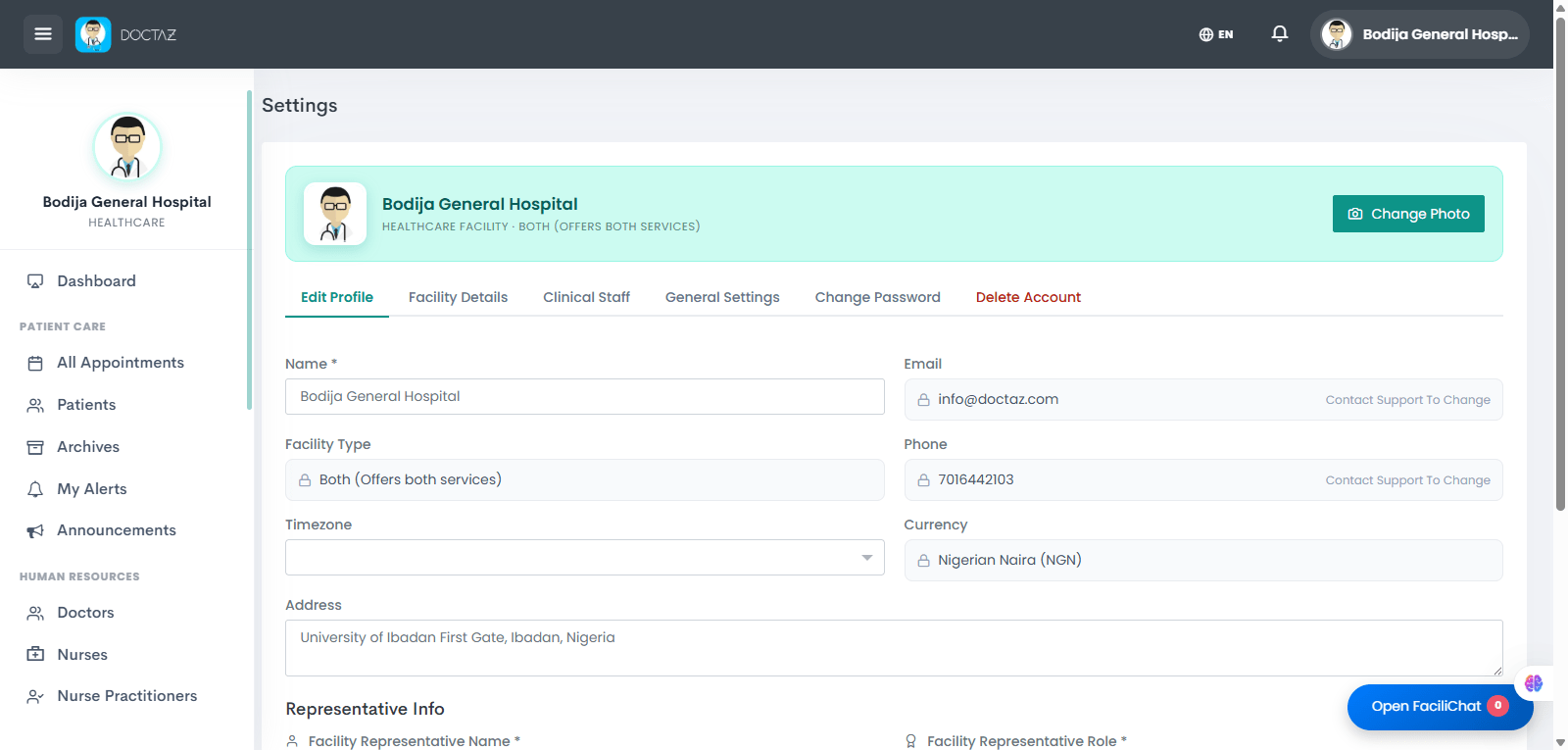
STEP 01 / 11Access DoctazOpen the Doctaz website and click Get Started from the home page to begin registration.STEP 02 / 11Select Registration TypeChoose Facility / Private Practice from the available registration options.STEP 03 / 11Complete Account InformationEnter the facility name, facility type, email address, password, and optionally upload the facility logo. Click Next to continue.STEP 04 / 11Enter Location DetailsSelect the country and currency, then provide the facility address. Click Next.STEP 05 / 11Configure Rooms & BedsCreate the facility structure by adding buildings, floors, rooms, and beds to match the physical layout of the facility.STEP 06 / 11Configure StaffingSpecify the number of healthcare providers (e.g., doctors, nurses, nurse practitioners) and assign specialties or provider types.STEP 07 / 11Add Facility RepresentativeEnter the primary contact person's name, role, and phone number for the facility. Click Next.STEP 08 / 11Select Subscription PlanChoose the preferred subscription plan (Essential, Professional, or Advanced). Review the plan details and complete registration.STEP 09 / 11Access Facility DashboardAfter registration is approved, the system creates the facility account and opens the Facility Dashboard.STEP 10 / 11Manage Rooms & BedsReview room and bed availability, occupancy status, and facility capacity from the Rooms & Beds module.STEP 11 / 11Update Facility SettingsManage facility information, representative details, address, profile photo, passwords, and other account settings from Facility Settings.