The admission workflow begins when the nurse picks up a checked-in patient from the queue, completes the initial assessment, flags a doctor or provider for evaluation, and proceeds with admission when inpatient care is required.
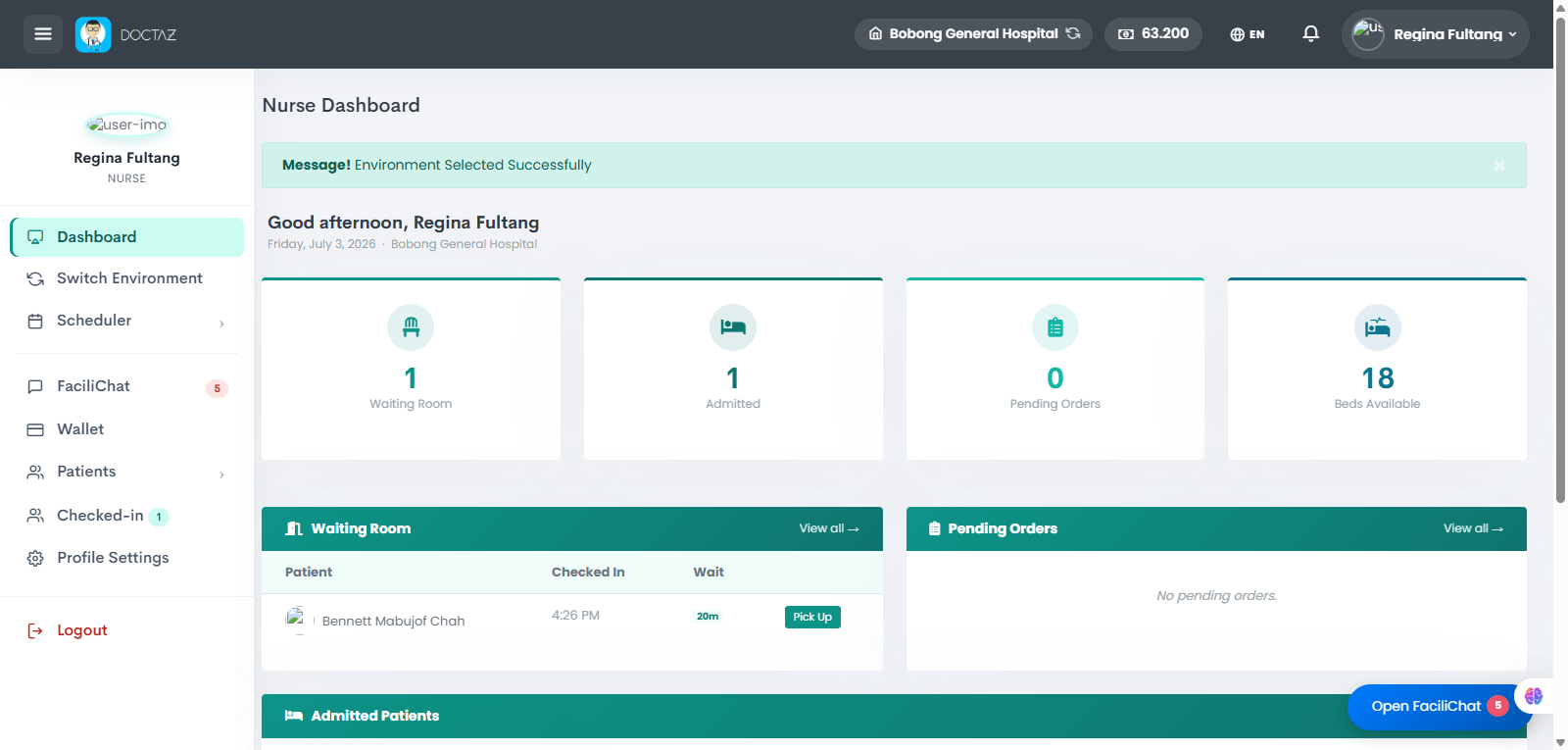
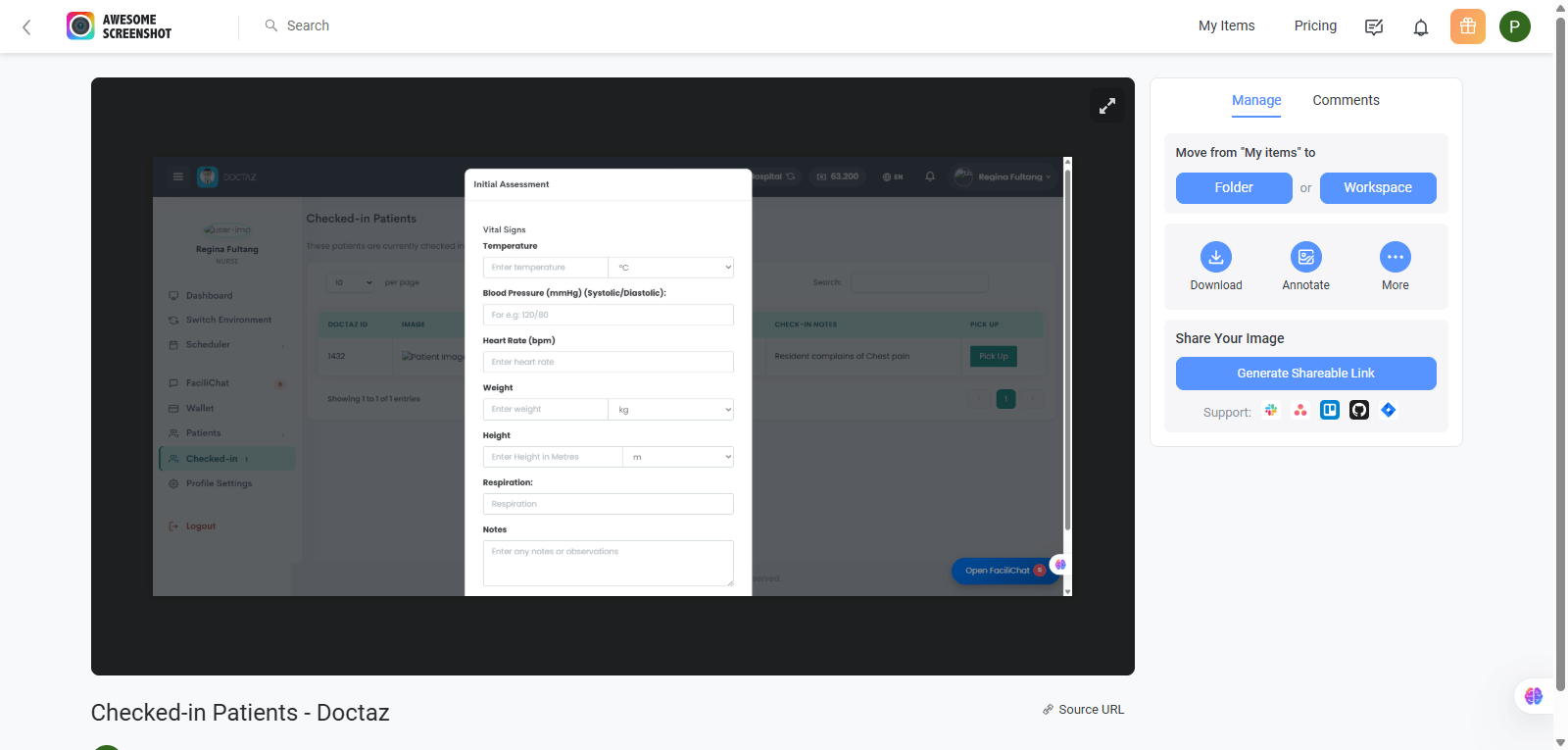
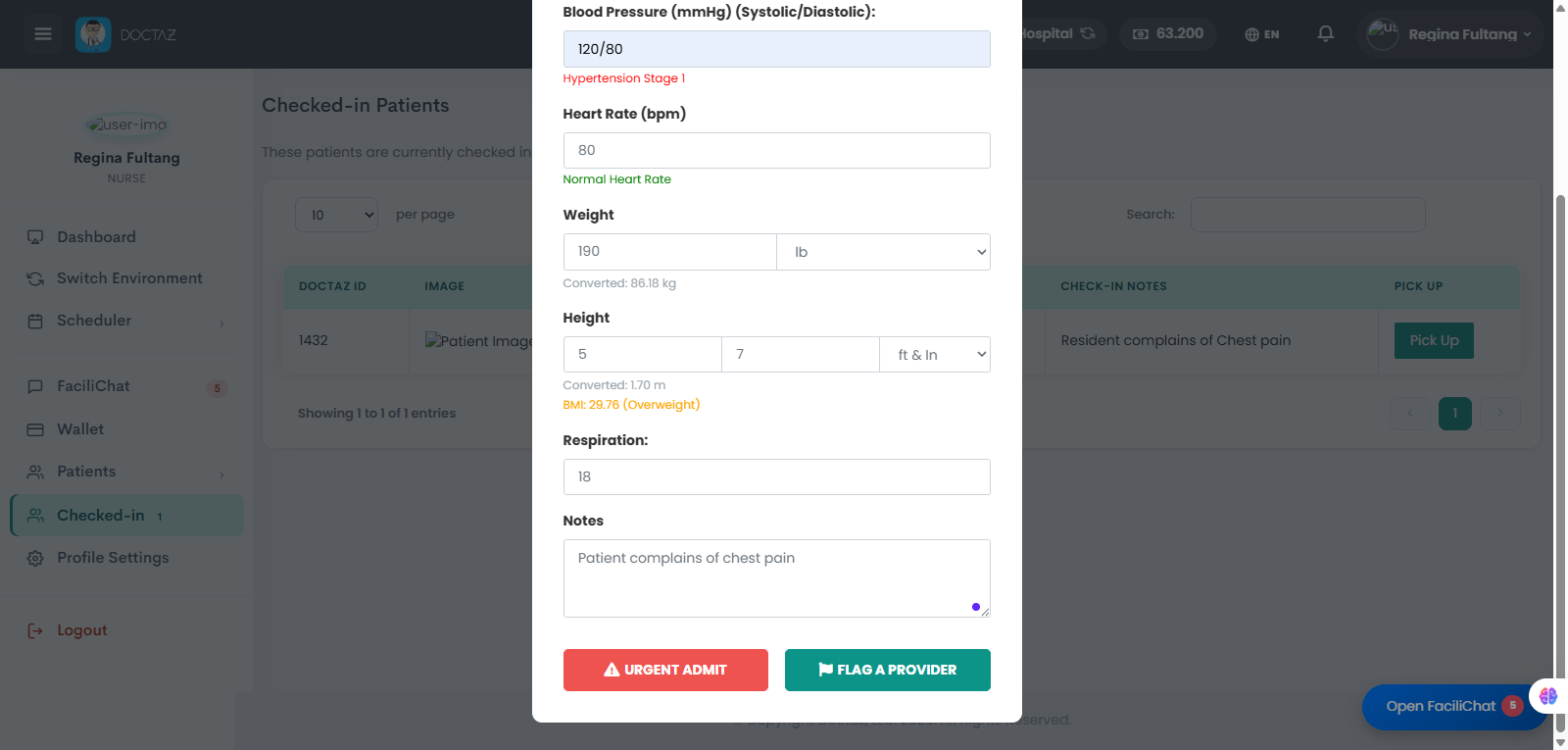
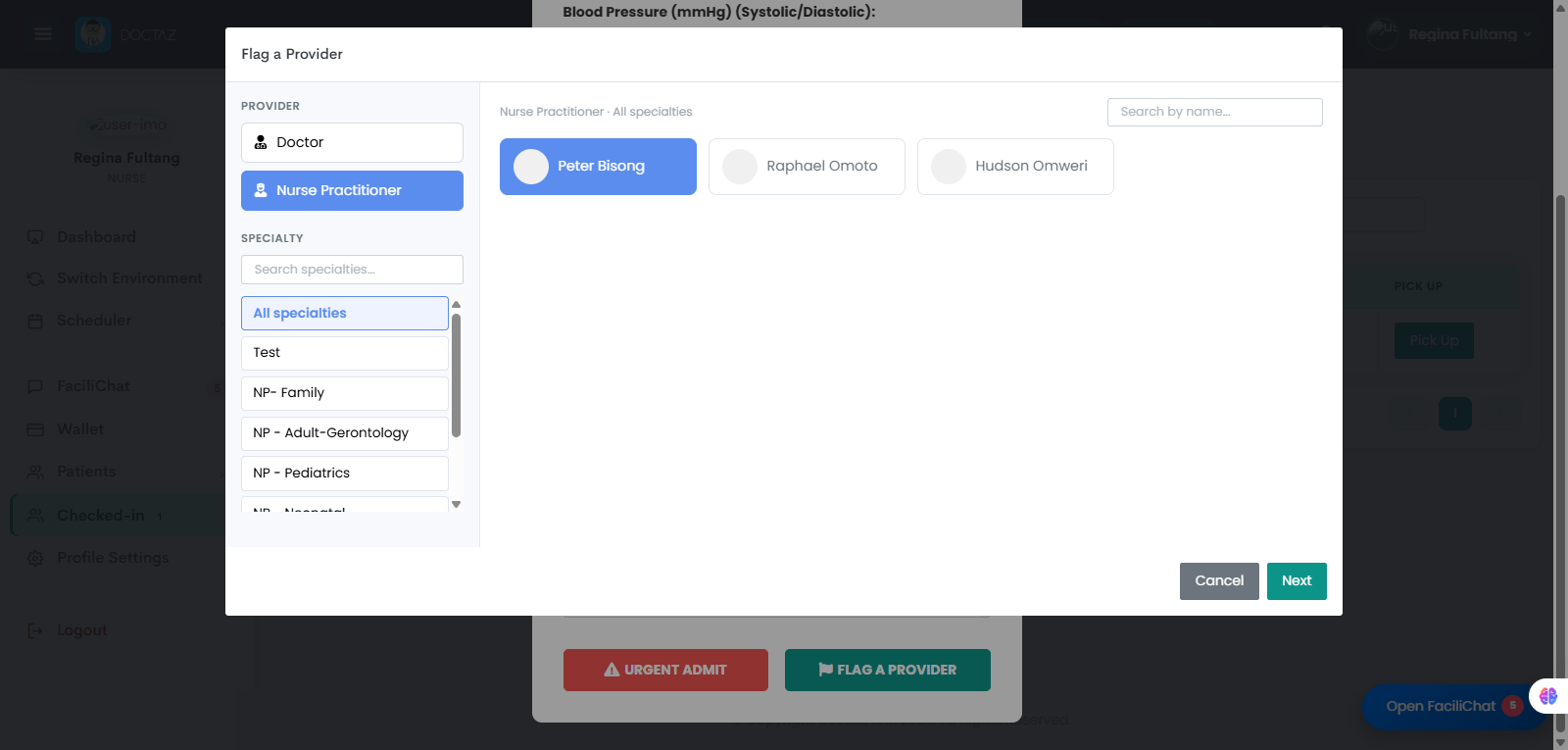
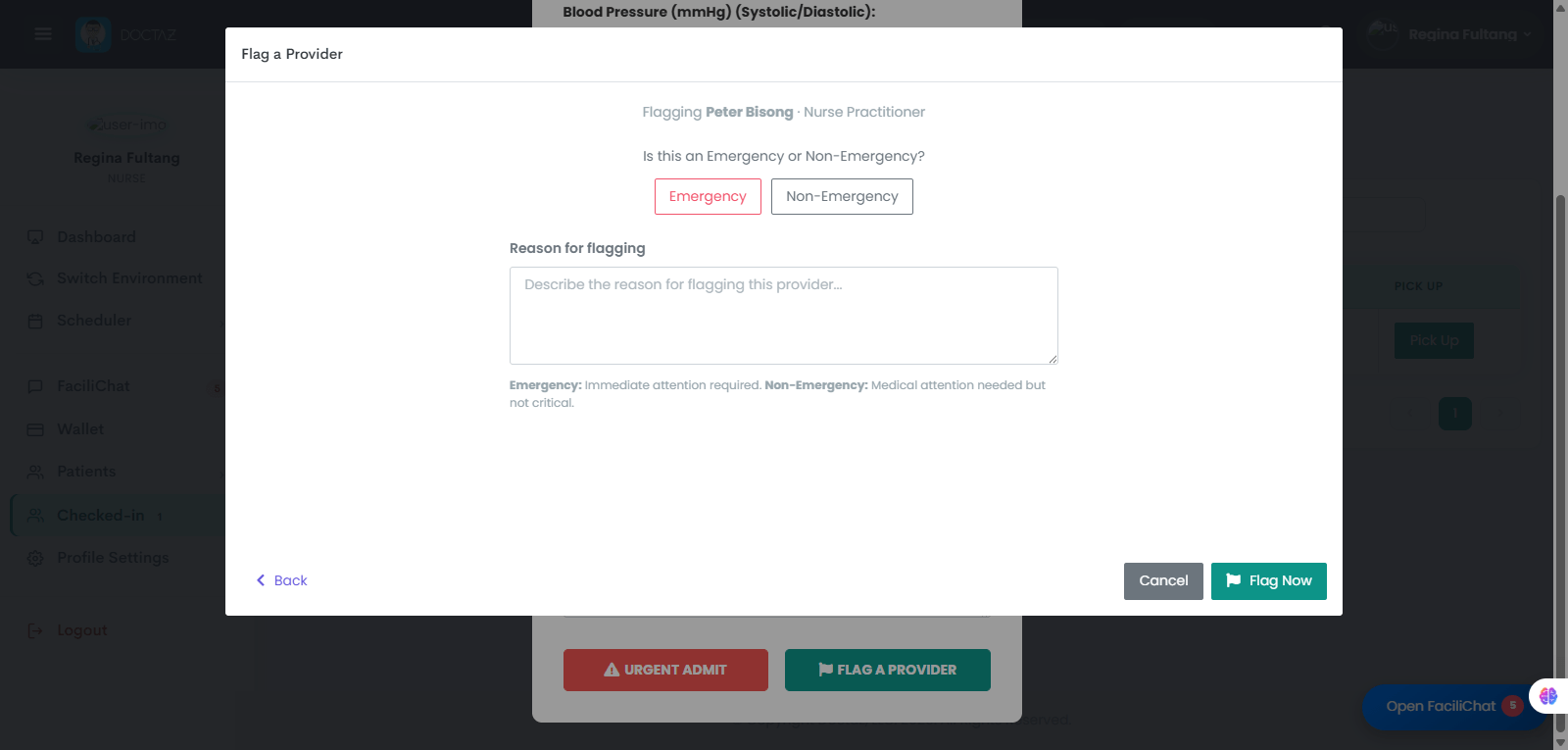
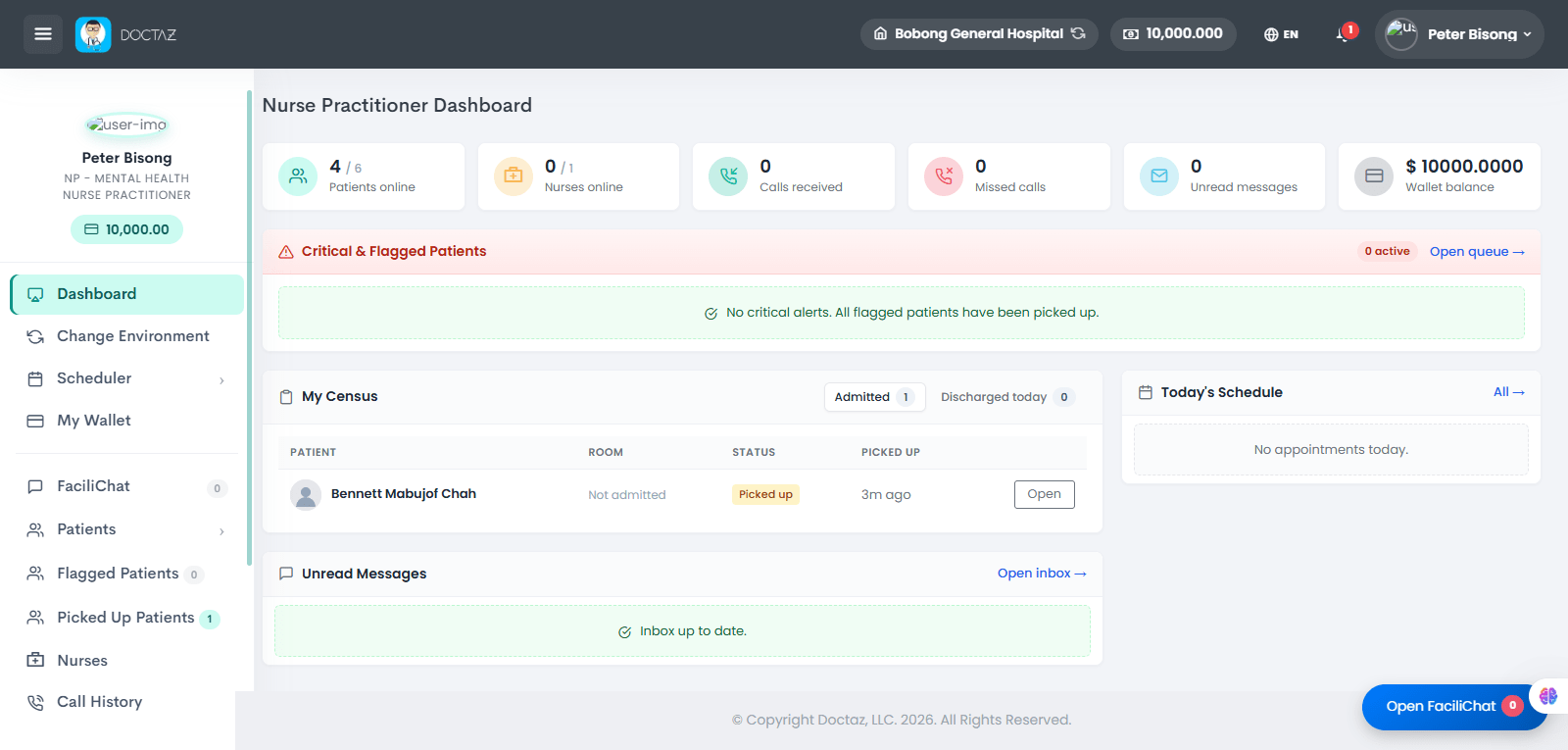
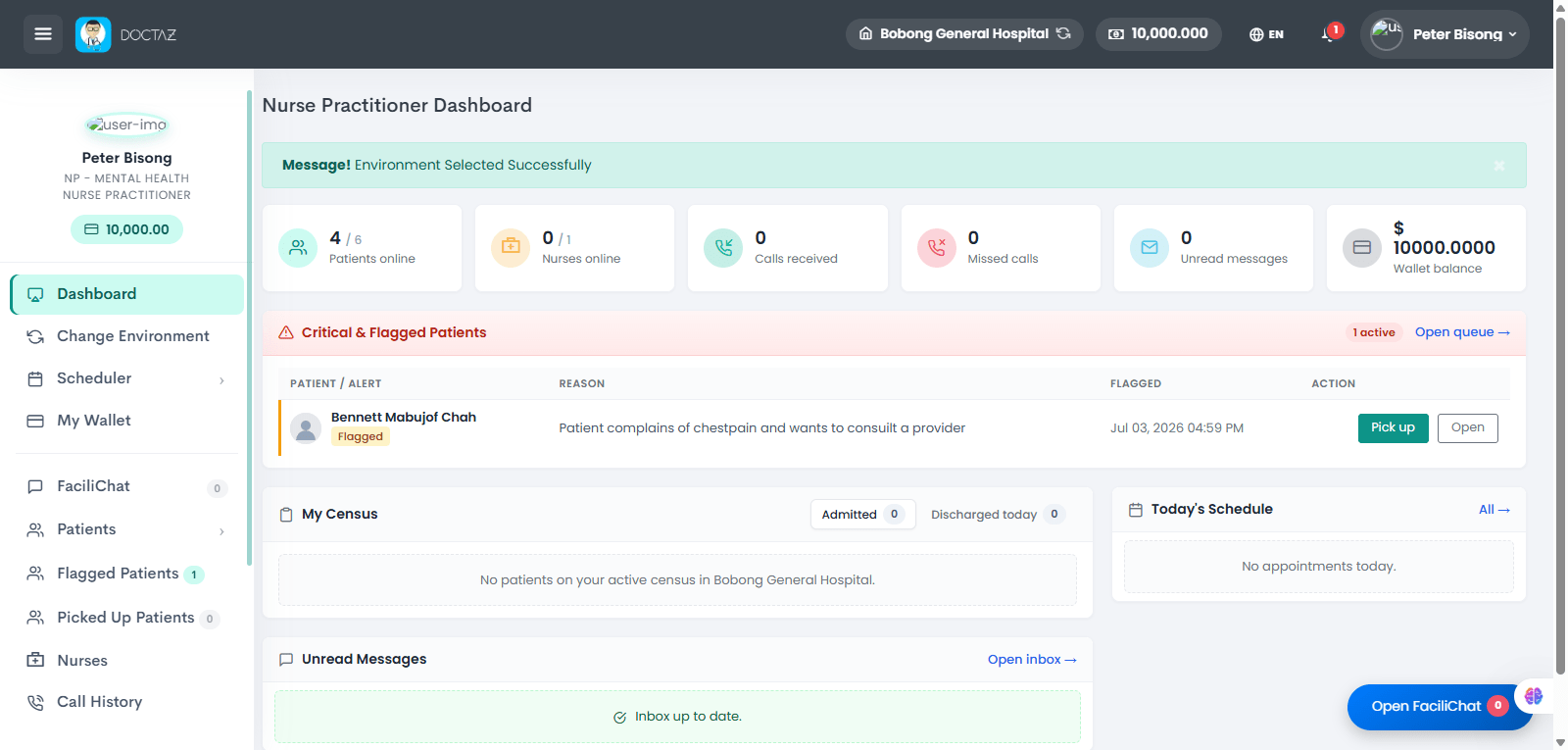
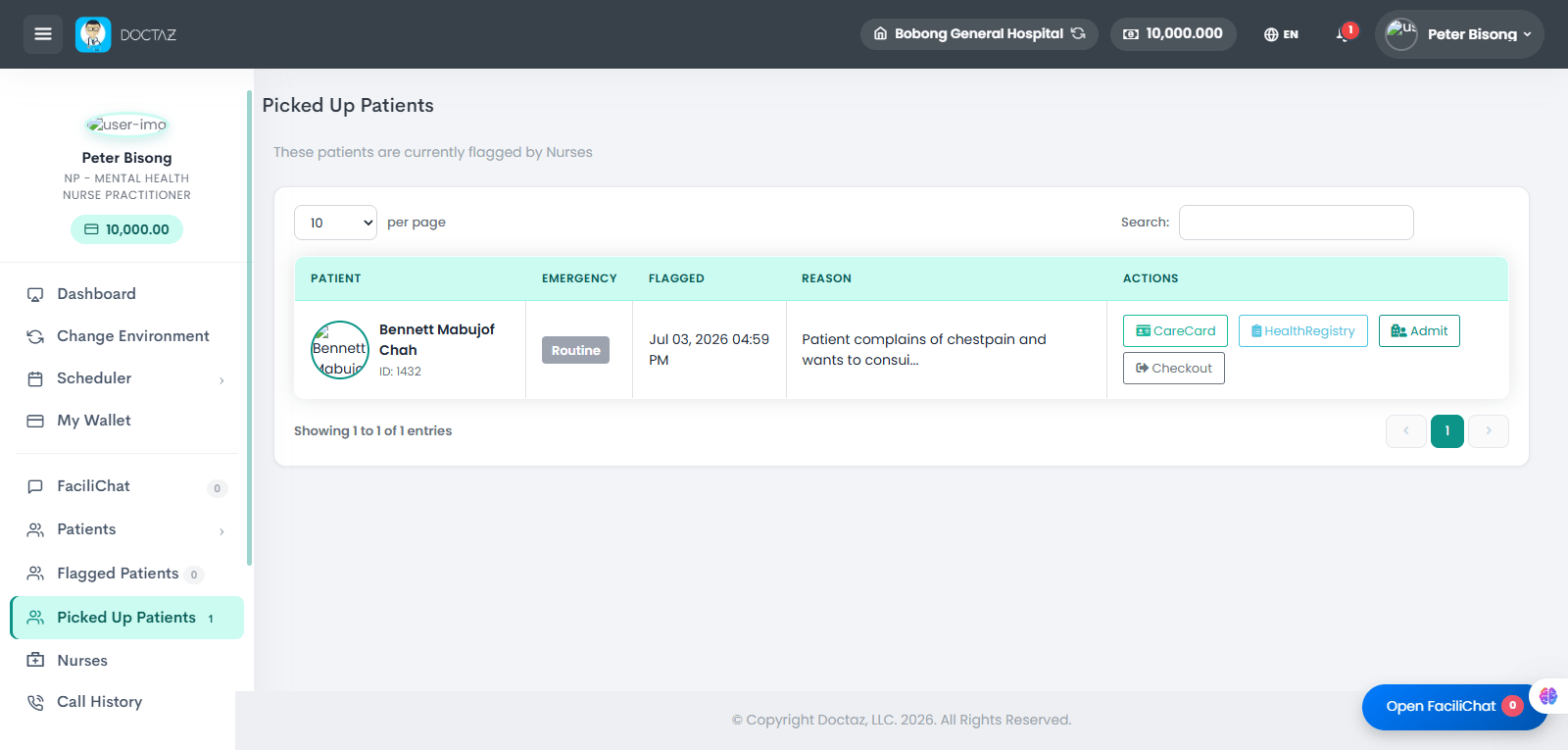
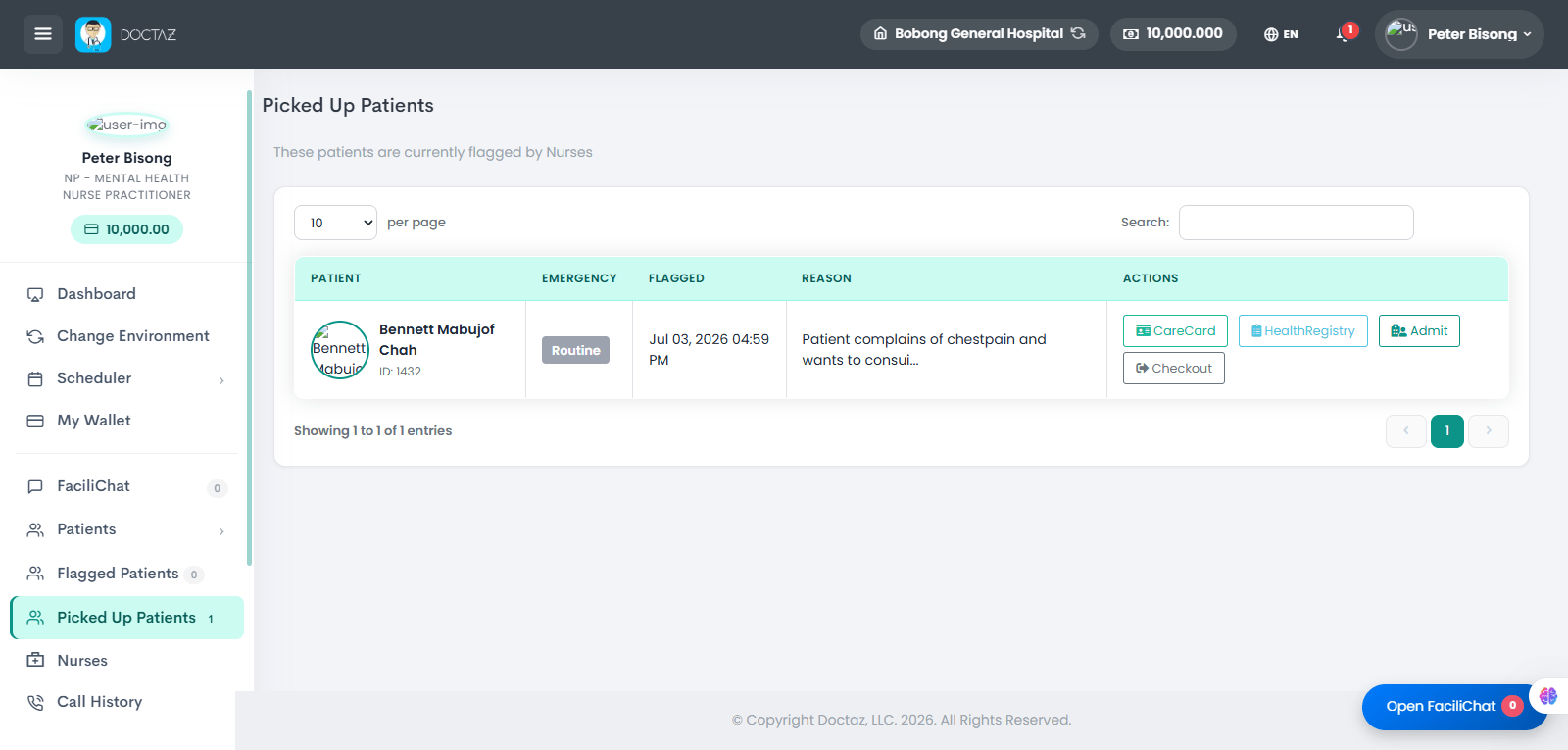
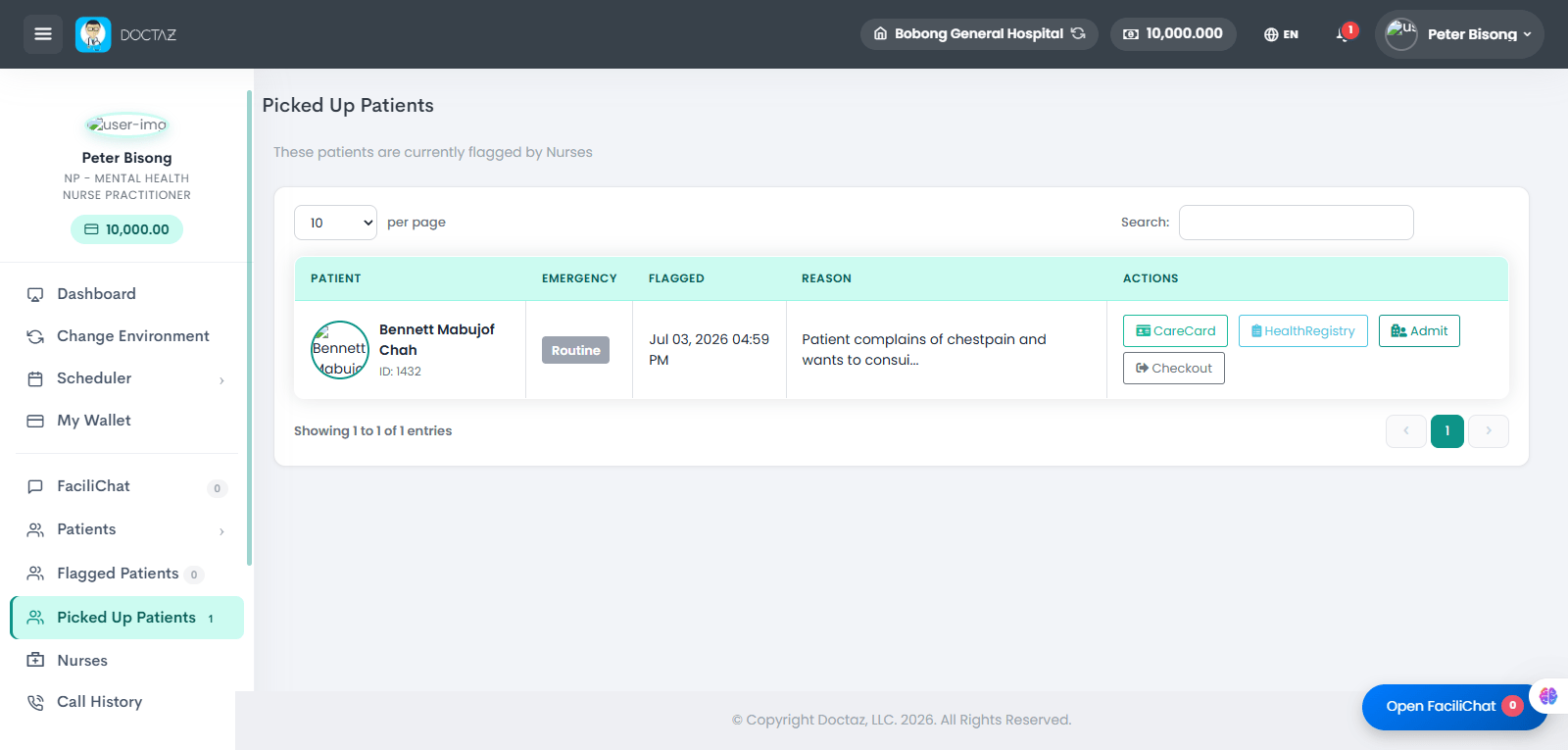
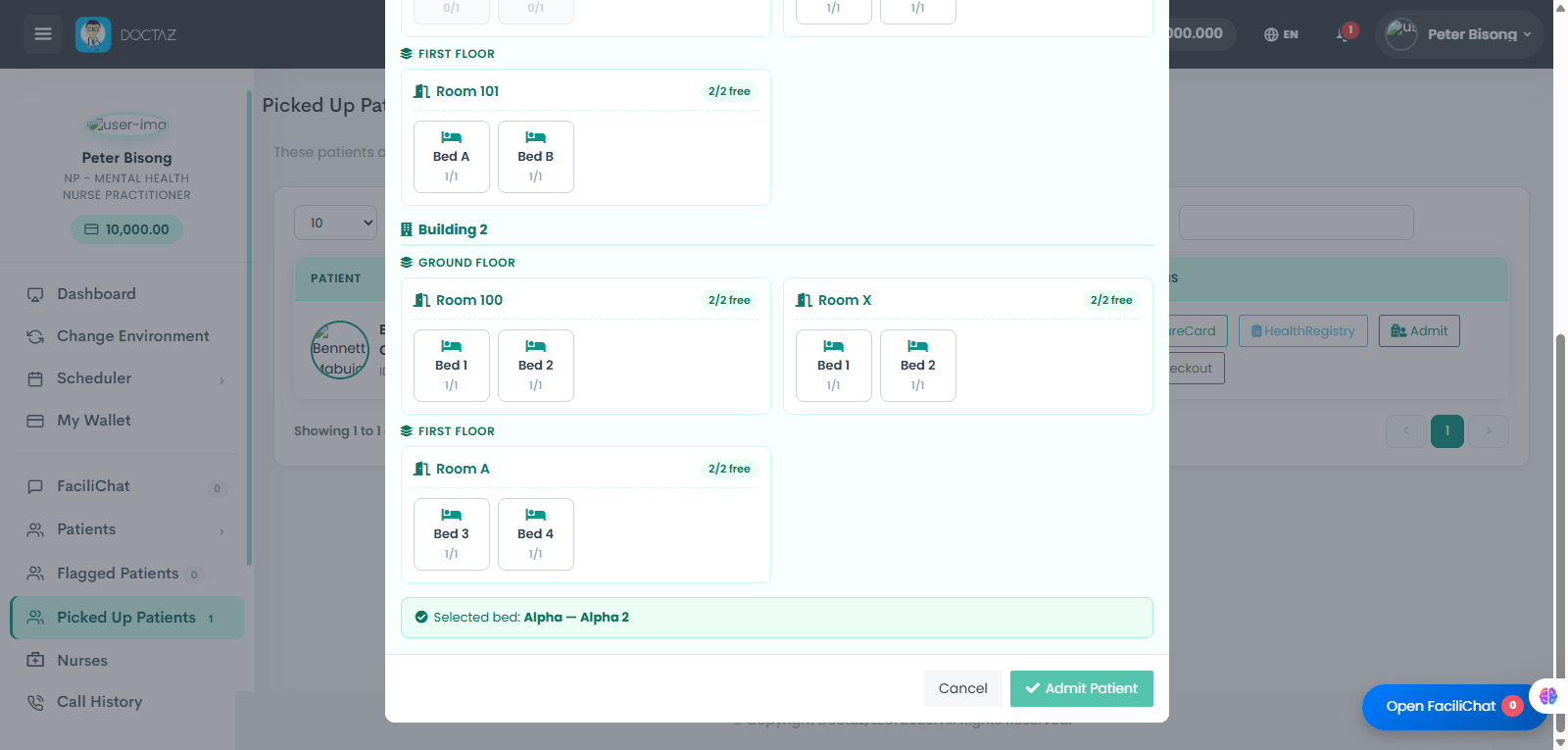
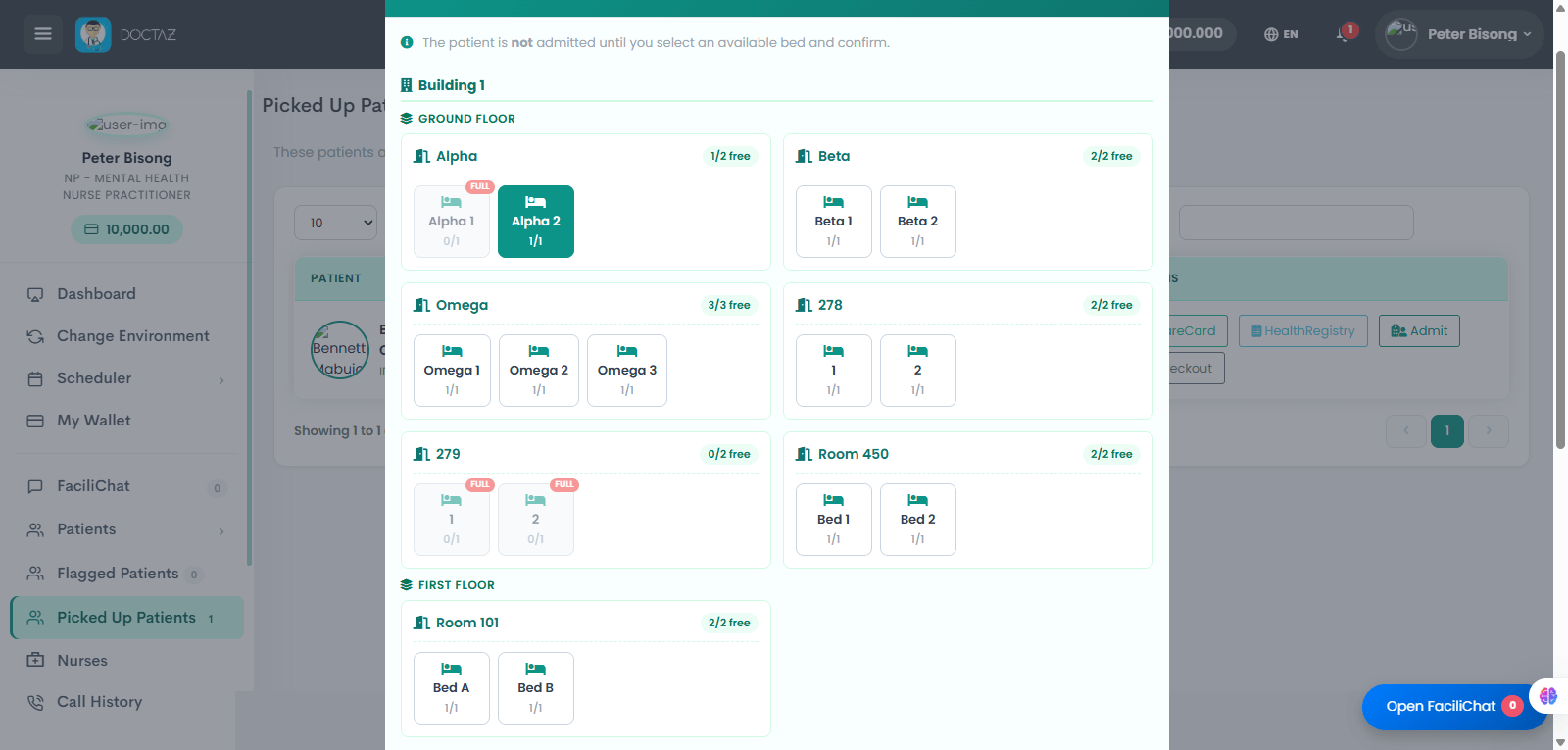
STEP 01 / 12Nurse Picks Up a Checked-In PatientThe nurse selects a checked-in patient from the waiting queue and clicks Pick Up to begin the initial assessment and assume responsibility for the patient's care.STEP 02 / 12Complete the Initial Nursing AssessmentThe nurse records the patient's vital signs, measurements, and assessment notes before determining the next course of action.STEP 03 / 12Flag a ProviderIf provider evaluation is required, the nurse clicks Flag a Provider.STEP 04 / 12Select the ProviderChoose either Doctor or Nurse Practitioner, optionally filter by specialty, select the provider, and click Next.STEP 05 / 12Submit the Consultation RequestSelect Emergency or Non-Emergency, enter the reason for consultation, and click Flag Now.STEP 06 / 12Provider Receives the Flagged PatientThe provider sees the consultation request under Critical & Flagged Patients.STEP 07 / 12Provider Picks Up the PatientThe provider clicks Pick Up to accept responsibility for the patient.STEP 08 / 12Patient Appears in Picked Up PatientsThe patient is now listed in the provider's Picked Up Patients queue, where the provider can access the CareCard, Health Registry, Admit, or Checkout options.STEP 09 / 12Review the Patient RecordOpen the patient's CareCard and Health Registry to review clinical information before making treatment decisions.STEP 10 / 12Admit the PatientClick Admit if inpatient care is required.STEP 11 / 12Select a Room and BedChoose an available room and bed, then click Admit Patient to complete the admissionSTEP 12 / 12Patient Successfully AdmittedThe patient is assigned to the selected room and bed and is added to the provider's inpatient census.